Using License Key and Hash for Drill Down Visuals
To unlock and use the paid features of ZoomCharts Drill Down Visuals in Power BI, you must provide a valid License Key and Hash within the visual’s License Settings.
These credentials verify your subscription and enable full functionality of the visuals.
If your license was purchased via Microsoft AppSource, you do not need to manually enter the License Key and Hash. In this case, licensing is managed automatically through the Microsoft 365 Admin Center. For more details, refer to the Microsoft Marketplace (Appsource) licensing documentation.
Where to find your License Key and Hash
Your License Key and Hash are generated automatically when you purchase a license or start a trial.
You can access them in two ways:
- In the confirmation email sent after your purchase or trial activation
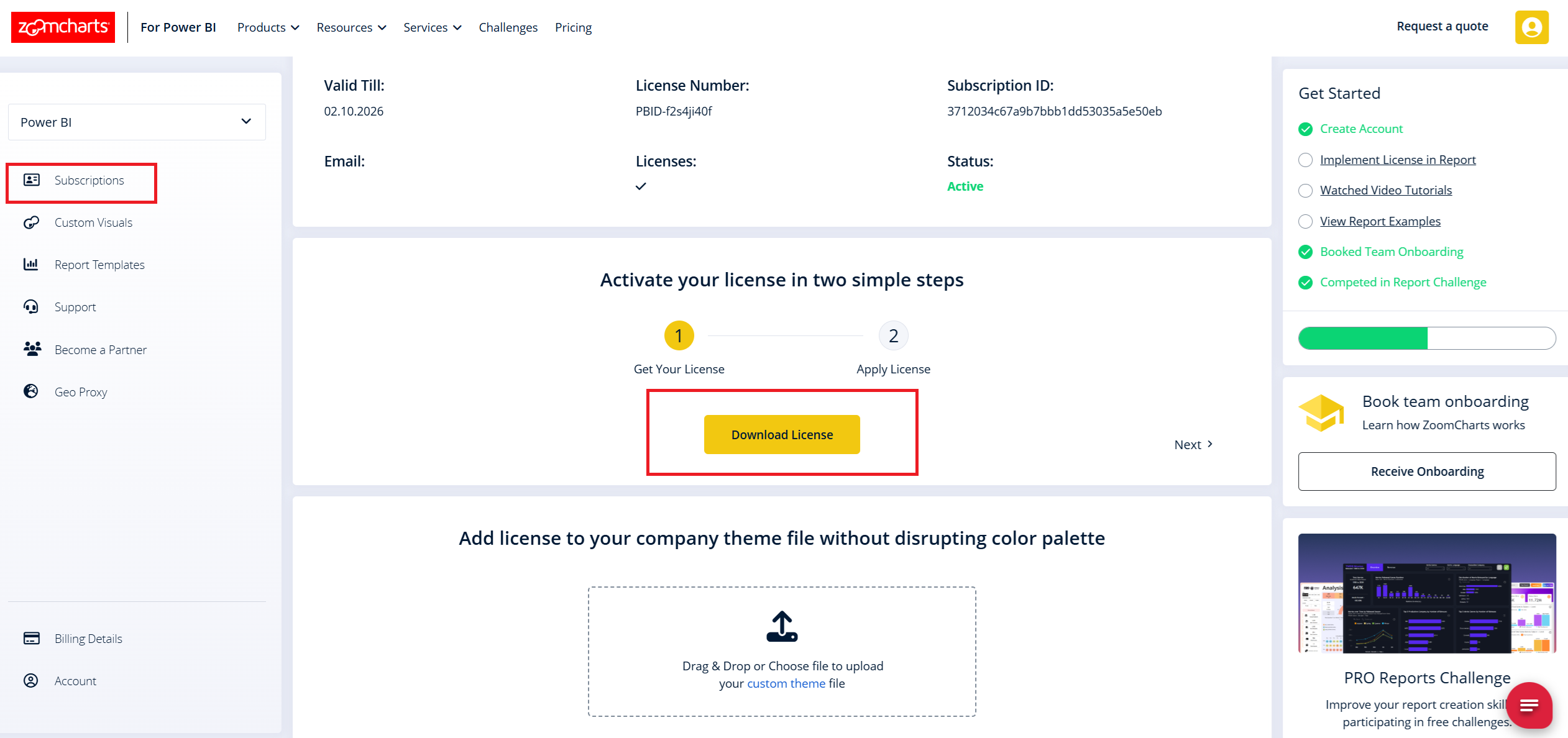
- By logging into your ZoomCharts account
- Download license as a .json file (custom theme)
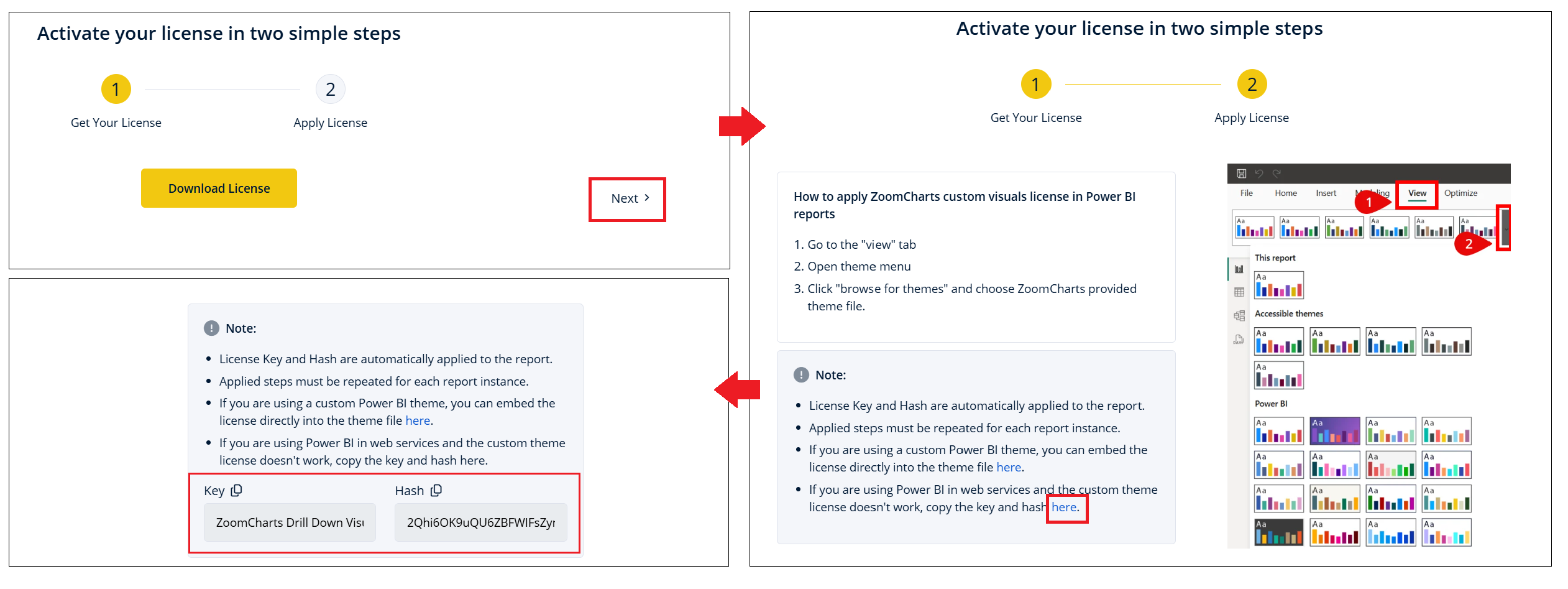
- Or access license key and hash separately
How licensing works
Before applying the license, it is important to understand how licensing functions. The License Key and Hash are applied at the visual level, not globally by default. License credentials are stored within the visual’s formatting settings . When your license is renewed, you will receive a new License Key and Hash, and the old values must be updated.
There are three supported approaches how you can apply and manage your license:
- Individual visual level
- Report level (custom theme)
- Organization level (recommended)
Each method is described in detail below.
1. Applying a license at the individual visual level
This is the most direct method and is typically used when working with a small number of visuals or when testing.
Step-by-step instructions
- Open your Power BI report
- Add a Drill Down Visual to the report canvas
- Assign data fields to create a chart
- Open the Format pane (visual formatting options)
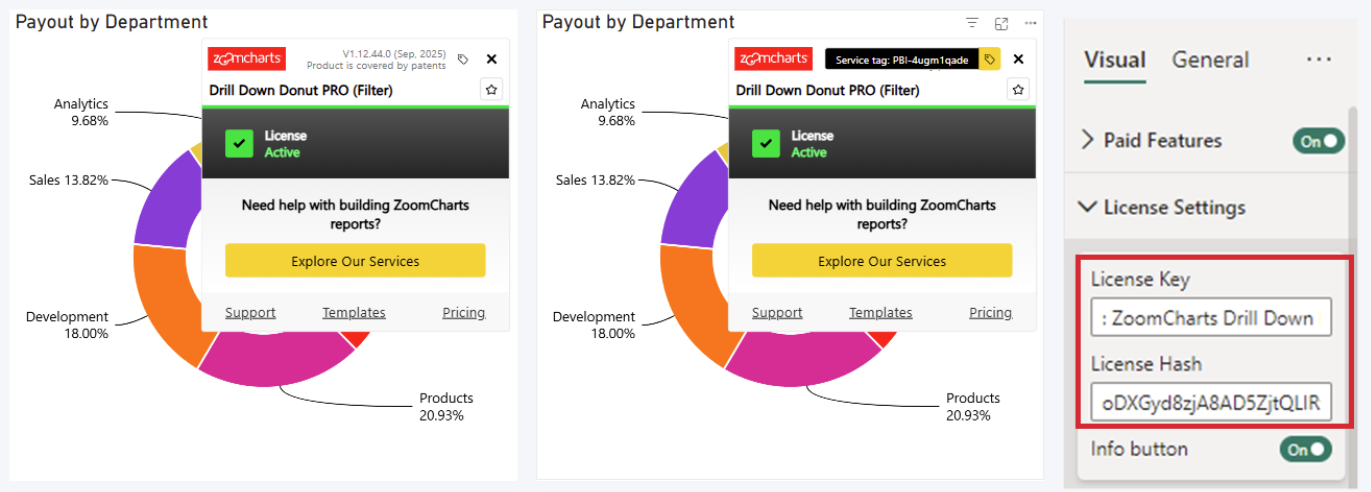
- Locate and enable the Paid Features toggle
- Expand the License Settings section
- Copy and Paste License Key and Hash into the corresponding fields in Power BI
- Repeat the process for each additional visual
If license is applied correctly, you will see a green check mark in the info window.
Additional guidance
- Licensing is applied per visual instance, so even identical visuals require credentials. Instead of configuring each visual manually, copy and paste an already licensed visual. The License Key and Hash are included in the visual configuration and will be carried over.
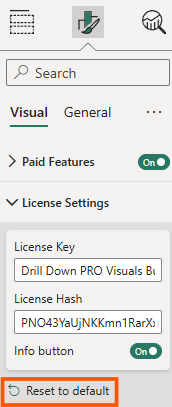
- If the visual still shows a license error after entering credentials:
- Check for accidental spaces when copying/pasting
- Open License Settings field
- Use the “Reset to default” option and re-enter the values
2. Applying a license at the report level (custom theme)
To simplify license management, you can apply credentials across the entire report using a custom theme file (.json).
This method ensures that all Drill Down Visuals in the report automatically receive the license, and you need to apply the license only once per report.
Step-by-step instructions
- Log in to your ZoomCharts account
- Locate the Download custom theme
- Download the theme file (.json) to your computer
- Open your Power BI report
- Go to the View tab in the top ribbon
- Expand the theme options
- Click Browse for themes
- Select and upload the downloaded .json file
- Once applied, the License Key and Hash are automatically configured for the report
- You can now add Drill Down Visuals without manually entering credentials
Important considerations
- The theme applies only to the current report. You must repeat this process for each new report you create. After license renewal, you need to download and apply a new theme file.
If you are using the Smart Key service (typically included in Enterprise plans) the theme only needs to be applied once. Licensing will remain valid automatically as long as your subscription is active, you won’t need to update the license each year.
Tips and best practices
- Apply the theme early. Apply the theme before adding visuals to avoid conflicts or manual corrections.
- Avoid partial configuration issues. If you opened and interacted with License Settings before applying the theme, the automatic application may not work.
To fix this:- Open Format → License Settings
- Click on Reset to default
- Reapply the custom theme
3. Managing licenses at the organization level (recommended)
For teams and organizations, the most efficient approach is to manage licensing centrally using Power BI Organization Themes.
How it works:
- A Power BI administrator uploads the ZoomCharts license theme (.json) to the organization’s theme library
- The theme becomes available to all users in the organization
- Report developers can easily select and apply it without downloading or uploading files manually
Applying the theme
Even with organization-level themes, report creators still need to select and apply the theme when creating a report as described above.
Combining with existing organization themes
If your organization already uses custom themes, you can combine them with the ZoomCharts license theme. You can combine the .json files yourself in your ZoomCharts account.
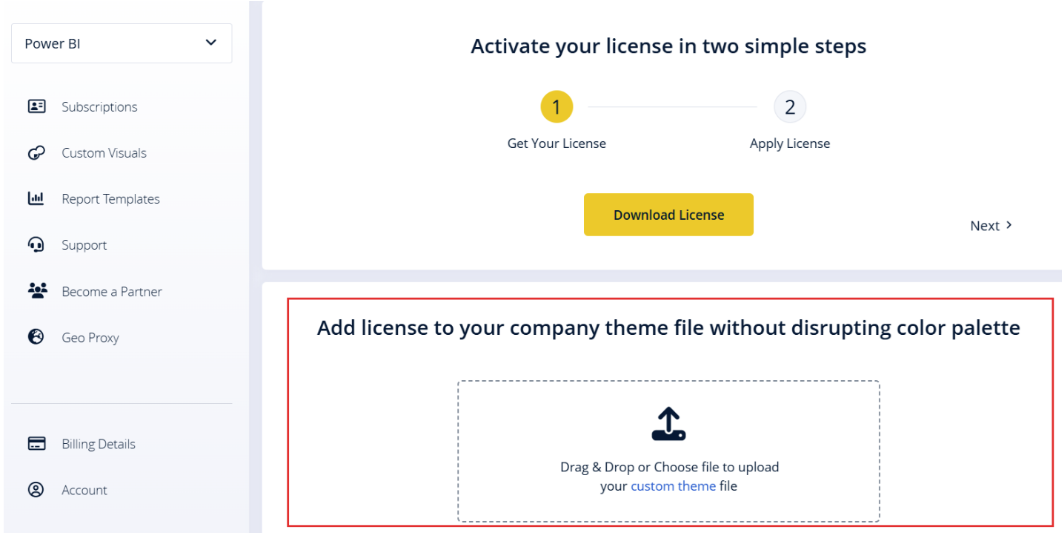
Or send your existing theme to [email protected], and the ZoomCharts team will merge it for you.
Summary and recommendations
- Use individual licensing for testing or small reports
- Use report-level themes if you have few developers and it’s easy to distribute the license theme
- Use organization-level themes for large teams and centralized management (recommended)
Applying the correct method will save time, reduce errors, and ensure all Drill Down Visuals function correctly with licensed features enabled.
Was this helpful? Thank you for your feedback!
Sorry about that.
How can we improve it?