logo
For Power BI Report Templates
  • Products

    Drill Down Visuals for Power BI

    Discover the most customizable custom visuals for Power BI.

    Pricing & licensing
    • Drill Down Donut Pro
      Drill Down Donut Category Composition
    • Drill Down Pie Pro
      Drill Down Pie Proportional Breakdown
    • Drill Down Combo Pro
      Drill Down Combo Multi-Metric Trends
    • Drill Down Combo Bar Pro
      Drill Down Combo Bar Cross-Metric Trends
    • Drill Down Line Pro
      Drill Down Line Trend Analysis
    • Drill Down Bubble Pro
      Drill Down Bubble Value Relationships
    • Drill Down Scatter Pro
      Drill Down Scatter Correlation Analysis
    • Drill Down Network Pro
      Drill Down Network Entity Connections
    • Drill Down Graph Pro
      Drill Down Graph Relationship Mapping
    • Drill Down Map Pro
      Drill Down Map Geographic Insights
    • Drill Down Waterfall Pro
      Drill Down Waterfall Change Breakdown
    • Drill Down Timeline Pro
      Drill Down Timeline Time-Based Metrics
    • Drill Down TimeSeries Pro
      Drill Down TimeSeries Temporal Patterns
    • Drill Down Line Pro
      Drill Down Line Trend Analysis

    Visuals in Planning

    Discover visuals we’re exploring, share your feedback, and help us decide what to build next.

    Browse concepts
  • Template Reports
    • Browse Report Templates
      Browse Report Templates Explore 2000+
      Power BI reports
    • Pricing Report Templates
      unlimited access

    Explore Report Templates

    Industry

    • Logistics
    • Education
    • Healthcare
    • Transportation
    • Banking
    • Ecommerce
    • Crime analytics
    • Retail
    • Manufacturing

    Business Domain

    • Sales
    • Marketing
    • Accounting & Finance
    • Human Resources
    • Research
    • Project Management
    • CRM
    • Support
    • Customer experience
  • Resources

      Learn

    • Video Tutorials Step-by-step Power BI guides
    • Webinars Live and recorded expert sessions
    • Visuals Gallery Explore all custom Power BI visuals
    • Blog Power BI tips, updates, and guides
    • Documentation Setup, features, and API reference

    Support

    • ZoomCharts Assistance Help from our product experts
    • Contact Sales Questions about pricing or licensing
    • Contact Support Technical help and troubleshooting
    • FAQ Quick answers to common questions
  • Services
    • Power BI Report Development
      Power BI Report Development End-to-end custom
      Power BI reports.
    • Custom Visual Development
      Custom Visual Development Custom visuals for
      your business needs.
  • Challenges
  • Pricing
Request a quote Get Developer License Sign in
Request a quote Book a Demo Get Developer License Sign in
Get it now
Go back

Contents

ZoomCharts Documentation

Up Down
Edit Category
Delete Save Add Child

Microsoft Marketplace (AppSource)

Purchasing

ZoomCharts visuals are available for purchase through the Microsoft Marketplace, a convenient and user-friendly repository for all your custom visuals.


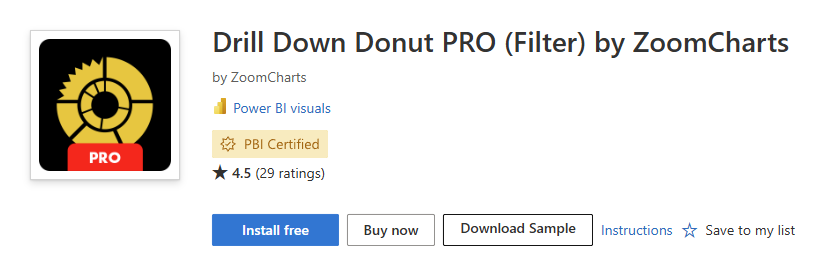
Step 1: Find Drill Down Visuals on Microsoft Marketplace (AppSource)

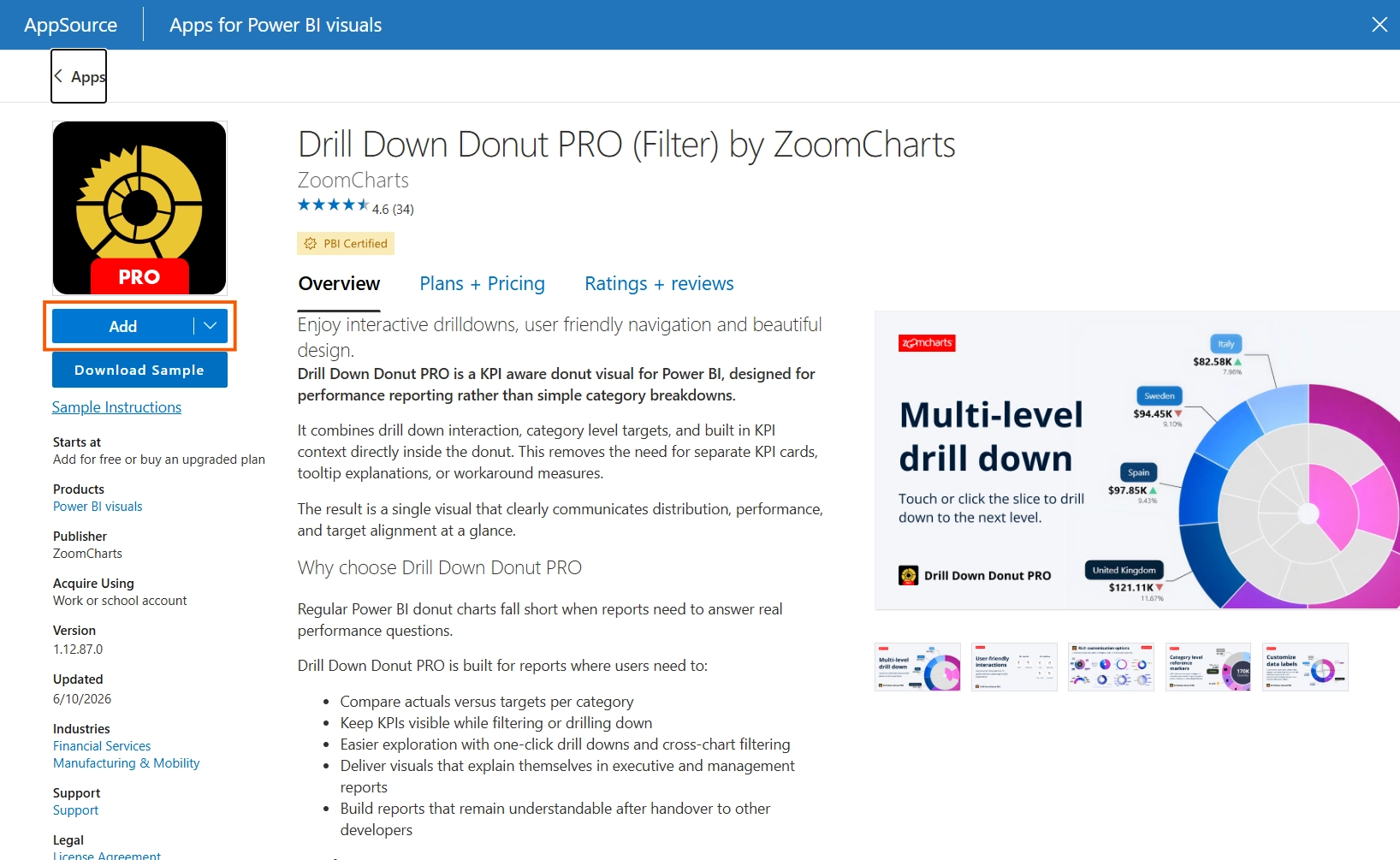
Navigate to the Microsoft Marketplace website and conduct a search for the ZoomCharts visual you require.


After selecting the ZoomCharts visual, click on it to access the Buy now button, which will direct you to the purchase page. 


Important note: Only the person who purchased the licenses and is an administrator for the tenant can assign a license in Microsoft 365 Admin center.  Ensure you have an admin role if you are purchasing licenses for anyone other than yourself.

drilldownvisual-appsource-purchase

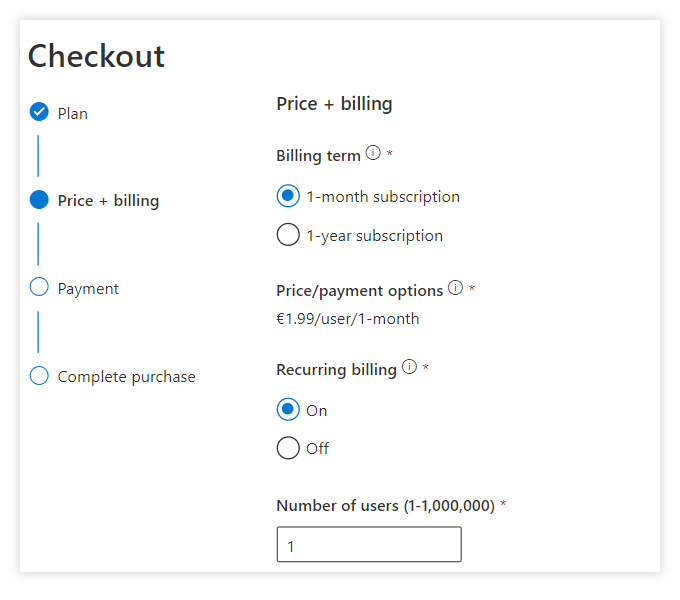
Step 2: Confirm price and billing options

Choose the plan, and once you’re on the checkout page, you can select between monthly and yearly billing periods. Furthermore, you can opt-in for automatic payments, and select the number of user licenses you want to purchase.
appsource-checkout

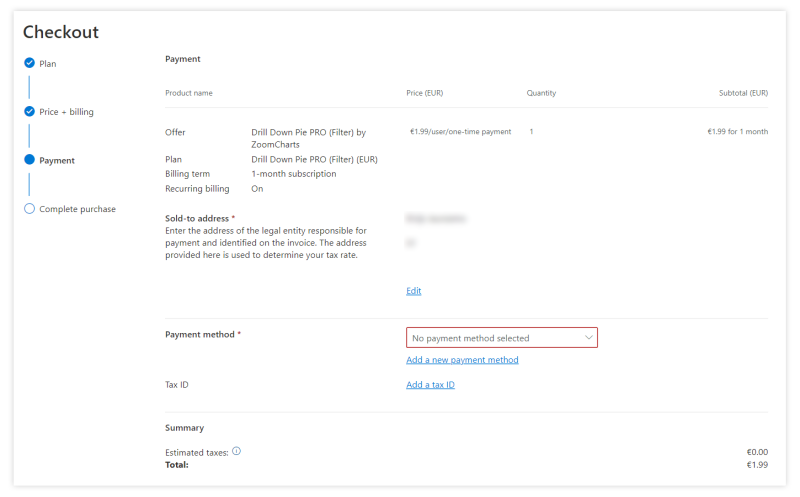
Step 3: Confirm price and billing options

This is the last step you need to take before you can purchase and start using ZoomCharts custom visuals. On this page, you’ll need to confirm your sold-to address, payment method and tax ID if applicable. If you don’t already have a payment method associated with your AppSource account, simply press Add a new payment method and enter your payment card details.
appsource-purchase-page

Afterwards, press Place Order and confirm the payment. You can then assign the licenses to your team members.


You will receive a license automatically within 24 h after purchasing the visual (Microsoft’s FAQ states 5 minutes, but we have noticed that in practice it can take up to 24 h).


Managing your ZoomCharts visual licenses in Microsoft 365 Admin Center

You can manage the licenses for custom visuals in the same place as your Microsoft products, including Office and Power BI - Microsoft 365 Admin Center.


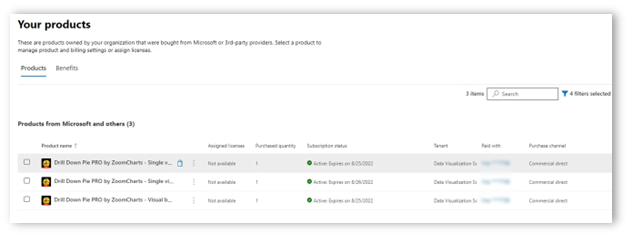
Step 1: View all your owned products

In the Admin Center, open the Billing section in the sidebar and click on Your Products. You will be presented with an overview of all your product licenses. Click on the product that you want to manage.

Your Products

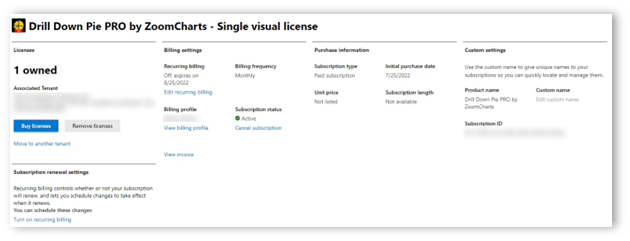
Step 2: Manage your payment settings

On this page, you can make changes to the billing settings and buy additional licenses for your team.

Billing settings

Step 3: View your licenses

You can get an overview of all your owned product licenses by heading to Billing -> Licenses. On this page, you can view how many licenses you own and how many of them are assigned to users. You can then click on the product you want to manage.


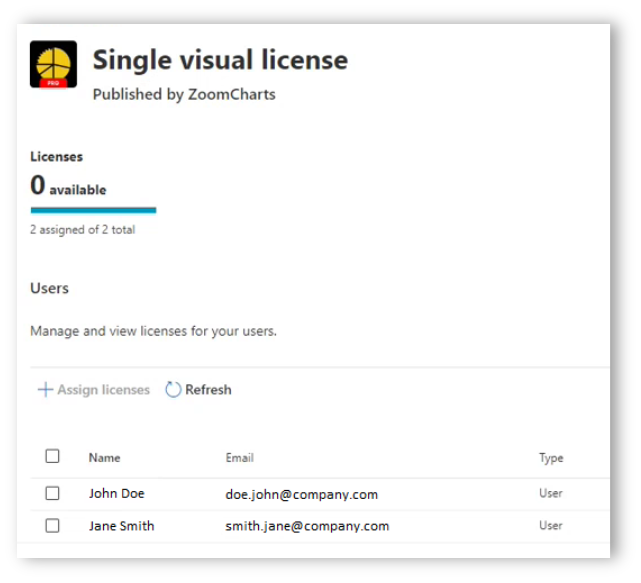
Step 4: Manage your licenses

Once you’ve selected the product you want to manage, you will proceed to a page that shows all the users who have been assigned a license. If you want to assign a license to a new user, simply click on Assign licenses. The page will open a menu which will allow you to search for a specific employee or group to which you want to assign a license.

If you want to unassign licenses, select the checkboxes for all the users you want to remove licenses from, and click Unassign licenses. Keep in mind that any changes that you make may take up to an hour to process.

Single Visual License


Adding ZoomCharts visuals to Power BI

Once the administrator has assigned a license to a user or group, users can add licensed Drill Down Visuals to the report and start using them. See the instruction here.


Step 1: Download the visual from AppSource

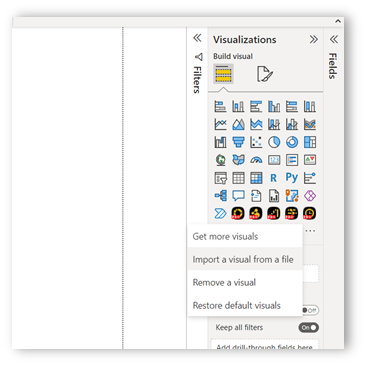
Press the Download button on the product page to download the .pbiviz file. Afterwards, open Power BI and press the ellipsis icon in the Visualizations panel. Press Import a visual from a file and locate the file you just downloaded. The visual’s icon will appear in the list of visualizations.

Download visual

Alternatively, press Get more visuals if you want to browse AppSource within Power BI and download the visual directly. Enter the name of the visual into the search bar, open the product page and press Add to download it.

Get more visuals

Step 2: Add the visual to your report

Click on the visual’s icon in the visualization panel, and it will appear on the report. Make sure that you have logged in with an account that has been assigned a license. If the user has been assigned a license, it will be verified by Power BI, and you can start using the PRO features of ZoomCharts visuals. If your account does not have a valid license, you will see a prompt to start a free 30-day trial.

Trial pop-up

Was this helpful? Thank you for your feedback!

Sorry about that.

How can we improve it?

logo
[email protected]
+44 204 577 3993
logo

Products

Drill Down Bubble PRO Drill Down Line PRO Drill Down Network PRO Drill Down Waterfall PRO Drill Down Graph PRO Drill Down Combo PRO Drill Down Combo Bar PRO Drill Down Donut PRO Drill Down Pie PRO Drill Down TimeSeries PRO Drill Down Timeline PRO Drill Down Map PRO Drill Down Scatter PRO All Visuals

Resources

Report Examples Webinars Blog ZoomCharts Academy Visuals Gallery Documentation Custom Visual Development Subscribe to News

Solutions

Custom Visual Development

Company

Pricing About Us Partners Leave feedback Join PowerGroup EU Funding

Help

ZoomCharts Assistance Contact Sales Contact Support FAQ AI Information

Drill Down Line PRO Drill Down Bubble PRO Drill Down Network PRO Drill Down Waterfall PRO Drill Down Graph PRO Drill Down Combo PRO Drill Down Combo Bar PRO Drill Down Donut PRO Drill Down Pie PRO Drill Down TimeSeries PRO Drill Down Timeline PRO Drill Down Map PRO Drill Down Scatter PRO All Visuals

Report Examples Webinars Blog ZoomCharts Academy Visuals Gallery Documentation Custom Visual Development Subscribe to News

Custom Visual Development

Pricing About Us Partners Leave feedback Join PowerGroup EU Funding

ZoomCharts Assistance Contact Sales Contact Support FAQ AI Information
+44 204 577 3993
[email protected]

Ready to get in touch?

Contact our experts with any question about Power BI and ZoomCharts for Free!

Contact us

© 2026, Data Visualization Software Lab

U.S. Patents No. 11,645,343; 11,921,804; 12,346,389

Cookies
Privacy Policy
Global
Legal
Patent
warning

Error message

success

Success info: Done!

ZoomCharts AI Assistant

We noticed you're using an old OS version.

For the best experience, we recommend upgrading to ensure that all website features display correctly.

Cookie settings

We use necessary cookies for site functionality, as well as statistic, marketing, and preference cookies to enhance your experience. For more information and to manage your preferences, please visit our Cookie policy