logo
For Power BI Report Templates
  • Products

    Drill Down Visuals for Power BI

    Discover the most customizable custom visuals for Power BI.

    Pricing & licensing
    • Drill Down Donut Pro
      Drill Down Donut Category Composition
    • Drill Down Pie Pro
      Drill Down Pie Proportional Breakdown
    • Drill Down Combo Pro
      Drill Down Combo Multi-Metric Trends
    • Drill Down Combo Bar Pro
      Drill Down Combo Bar Cross-Metric Trends
    • Drill Down Line Pro
      Drill Down Line Trend Analysis
    • Drill Down Bubble Pro
      Drill Down Bubble Value Relationships
    • Drill Down Scatter Pro
      Drill Down Scatter Correlation Analysis
    • Drill Down Network Pro
      Drill Down Network Entity Connections
    • Drill Down Graph Pro
      Drill Down Graph Relationship Mapping
    • Drill Down Map Pro
      Drill Down Map Geographic Insights
    • Drill Down Waterfall Pro
      Drill Down Waterfall Change Breakdown
    • Drill Down Timeline Pro
      Drill Down Timeline Time-Based Metrics
    • Drill Down TimeSeries Pro
      Drill Down TimeSeries Temporal Patterns
    • Drill Down Line Pro
      Drill Down Line Trend Analysis

    Visuals in Planning

    Discover visuals we’re exploring, share your feedback, and help us decide what to build next.

    Browse concepts
  • Template Reports
    • Browse Report Templates
      Browse Report Templates Explore 2000+
      Power BI reports
    • Pricing Report Templates
      unlimited access

    Explore Report Templates

    Industry

    • Logistics
    • Education
    • Healthcare
    • Transportation
    • Banking
    • Ecommerce
    • Crime analytics
    • Retail
    • Manufacturing

    Business Domain

    • Sales
    • Marketing
    • Accounting & Finance
    • Human Resources
    • Research
    • Project Management
    • CRM
    • Support
    • Customer experience
  • Resources

      Learn

    • Video Tutorials Step-by-step Power BI guides
    • Webinars Live and recorded expert sessions
    • Visuals Gallery Explore all custom Power BI visuals
    • Blog Power BI tips, updates, and guides
    • Documentation Setup, features, and API reference

    Support

    • ZoomCharts Assistance Help from our product experts
    • Contact Sales Questions about pricing or licensing
    • Contact Support Technical help and troubleshooting
    • FAQ Quick answers to common questions
  • Services
    • Power BI Report Development
      Power BI Report Development End-to-end custom
      Power BI reports.
    • Custom Visual Development
      Custom Visual Development Custom visuals for
      your business needs.
  • Challenges
  • Pricing
Request a quote Get Developer License Sign in
Request a quote Book a Demo Get Developer License Sign in
Get it now
Go back

Contents

ZoomCharts Documentation

Up Down
Edit Category
Delete Save Add Child

Interactivity

Move the Chart

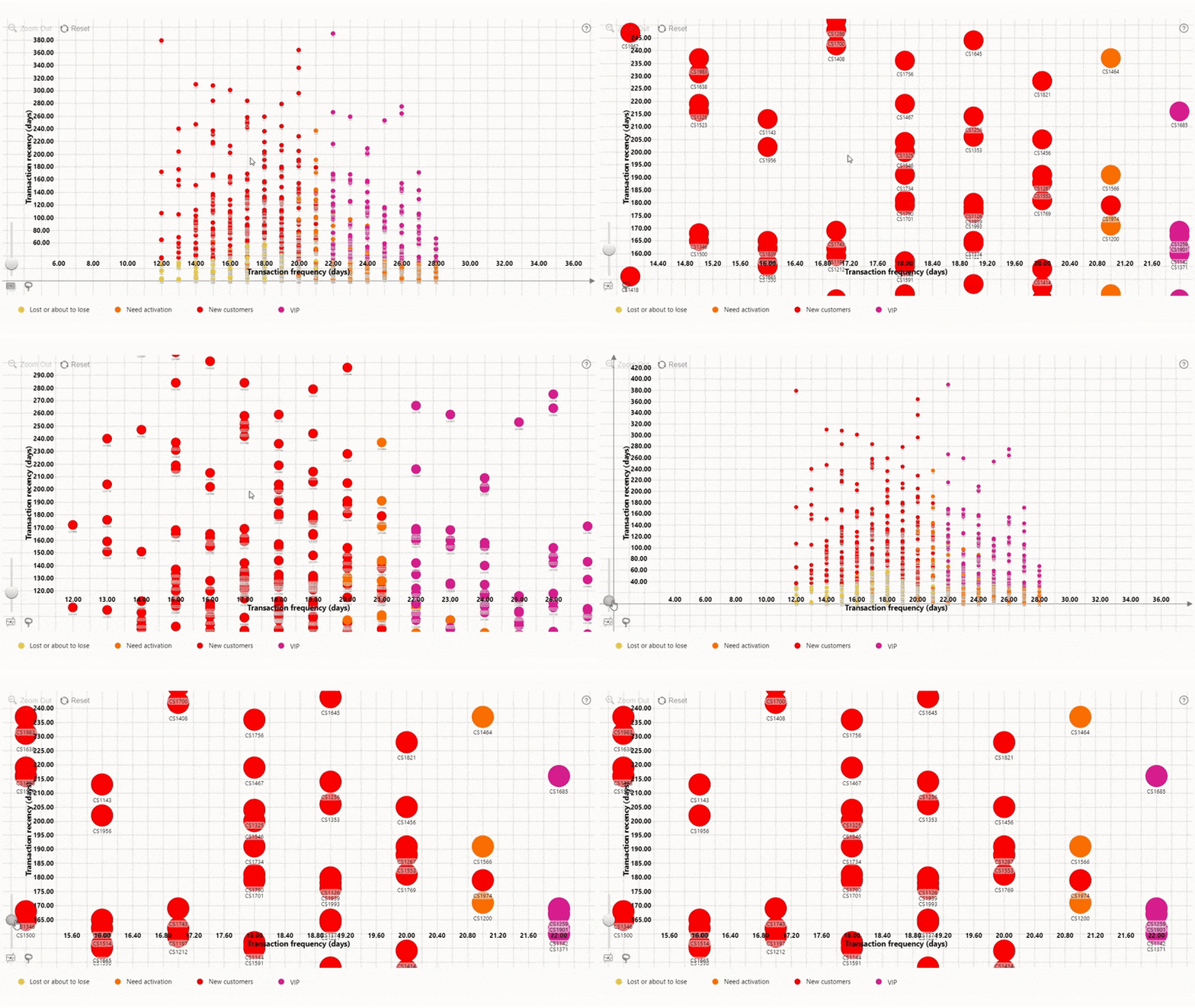
You can freely pan the bubble chart in any direction by holding the left mouse button while dragging your mouse. For touch devices, this can be done with tap and hold.
Move the Chart

Drill Down

To drill down to a category and reveal the next level of hierarchy, left-click or tap on a data point marker.
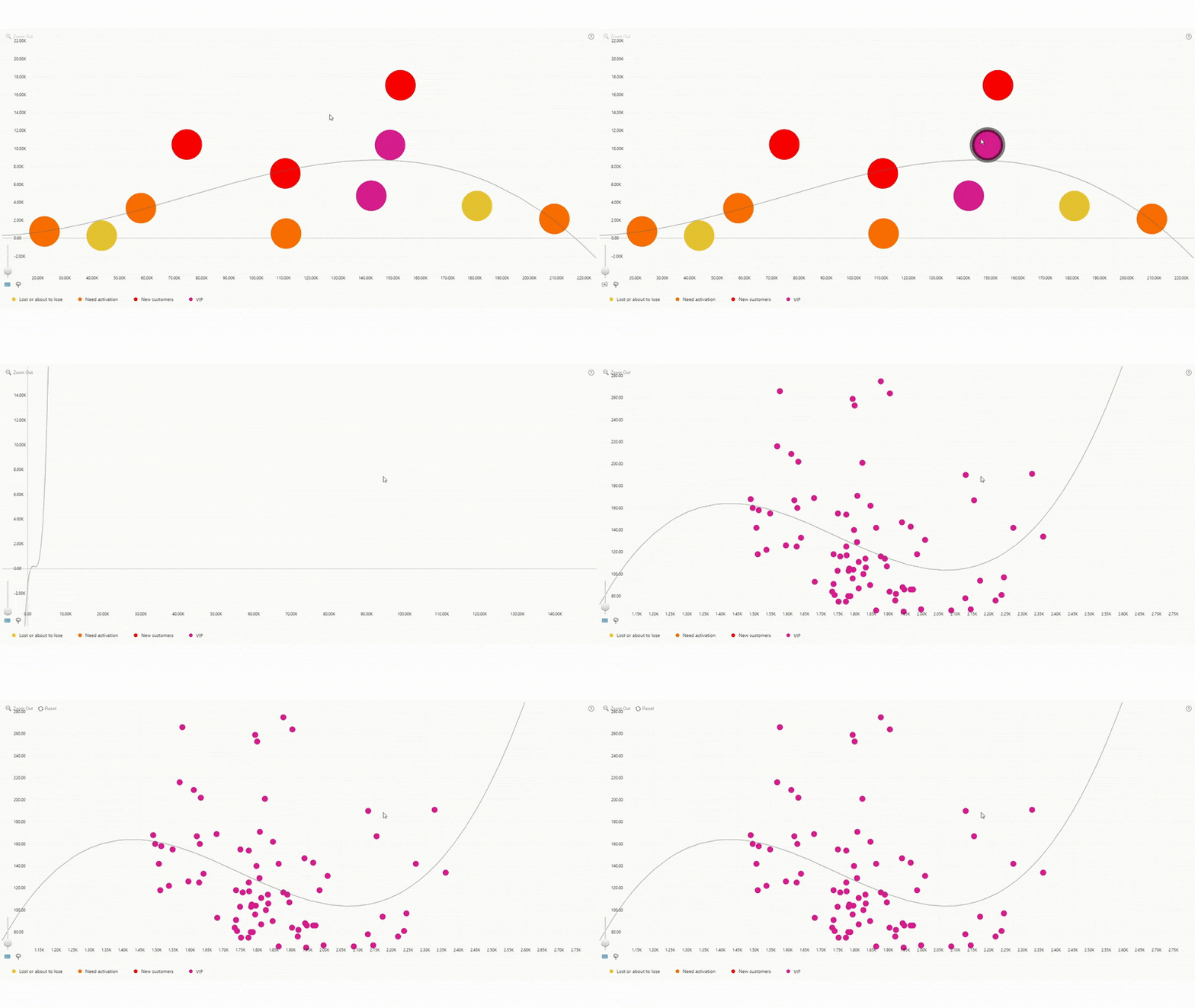
Drill Down

Drill Up

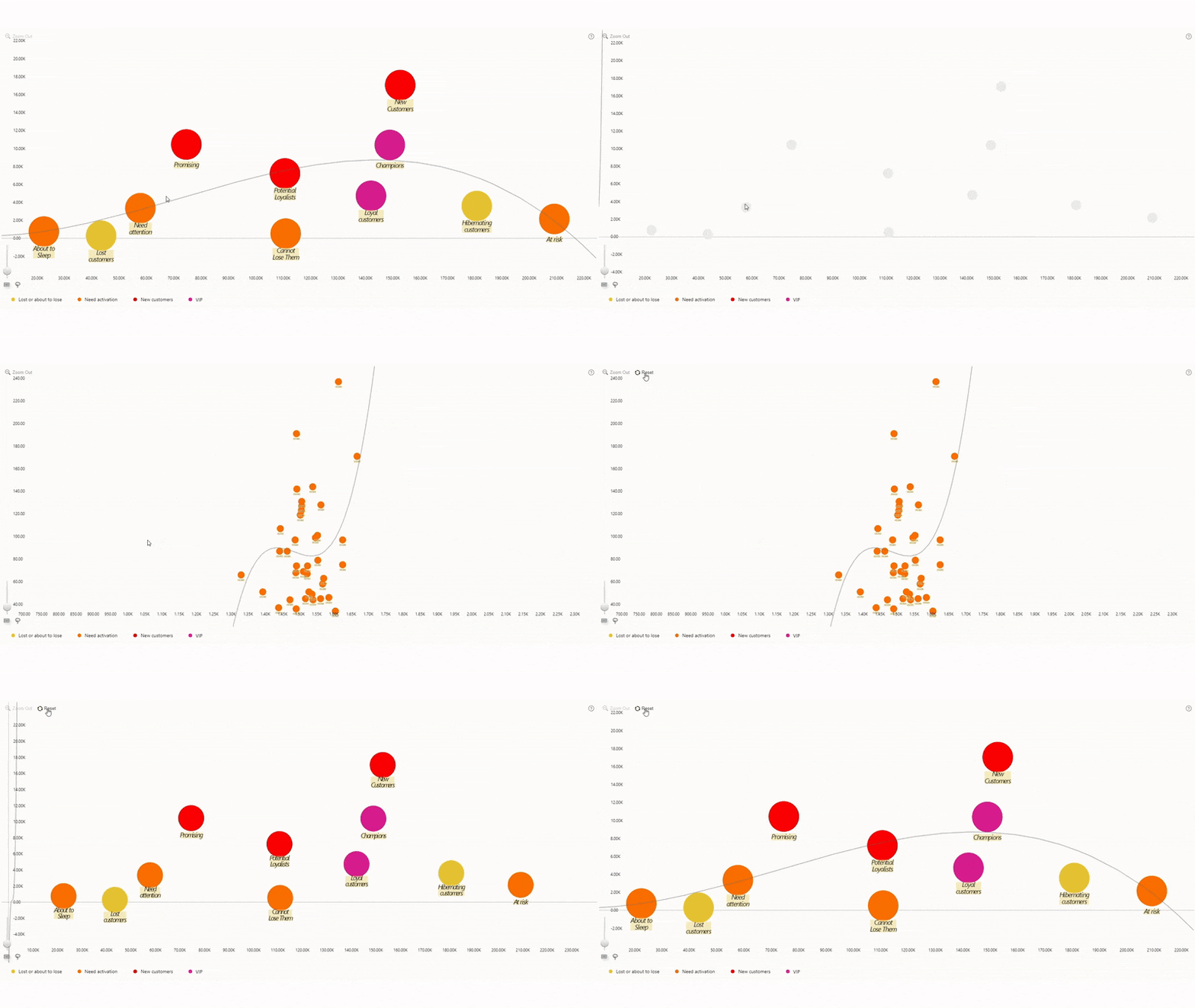
The previous level of hierarchy can be accessed by pressing the Zoom Out button in the toolbar which can be turned on with the Enable “Zoom Out”  setting.

drill-up

Show/Hide Legend Groups

If the Show/Hide Legend Groups is enabled, left-click or tap on any legend item to show/hide all data points within that legend group.
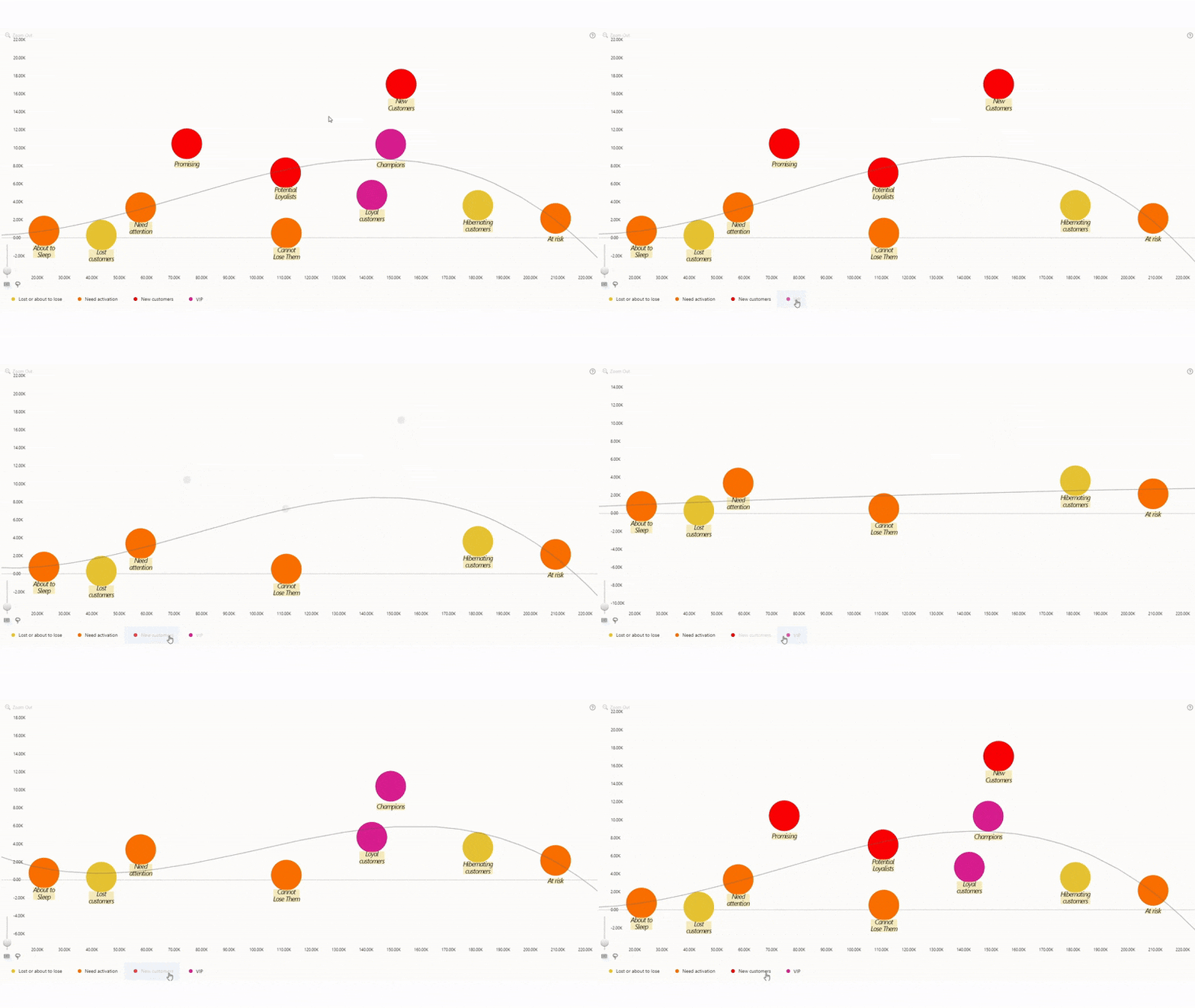
Show/Hide Legend Groups

Reset

Undo all user interactions and revert to the initial view by pressing the Reset button in the toolbar which can be turned on with the Enable “Reset” setting.

Reset

Zoom-in/Zoom-out

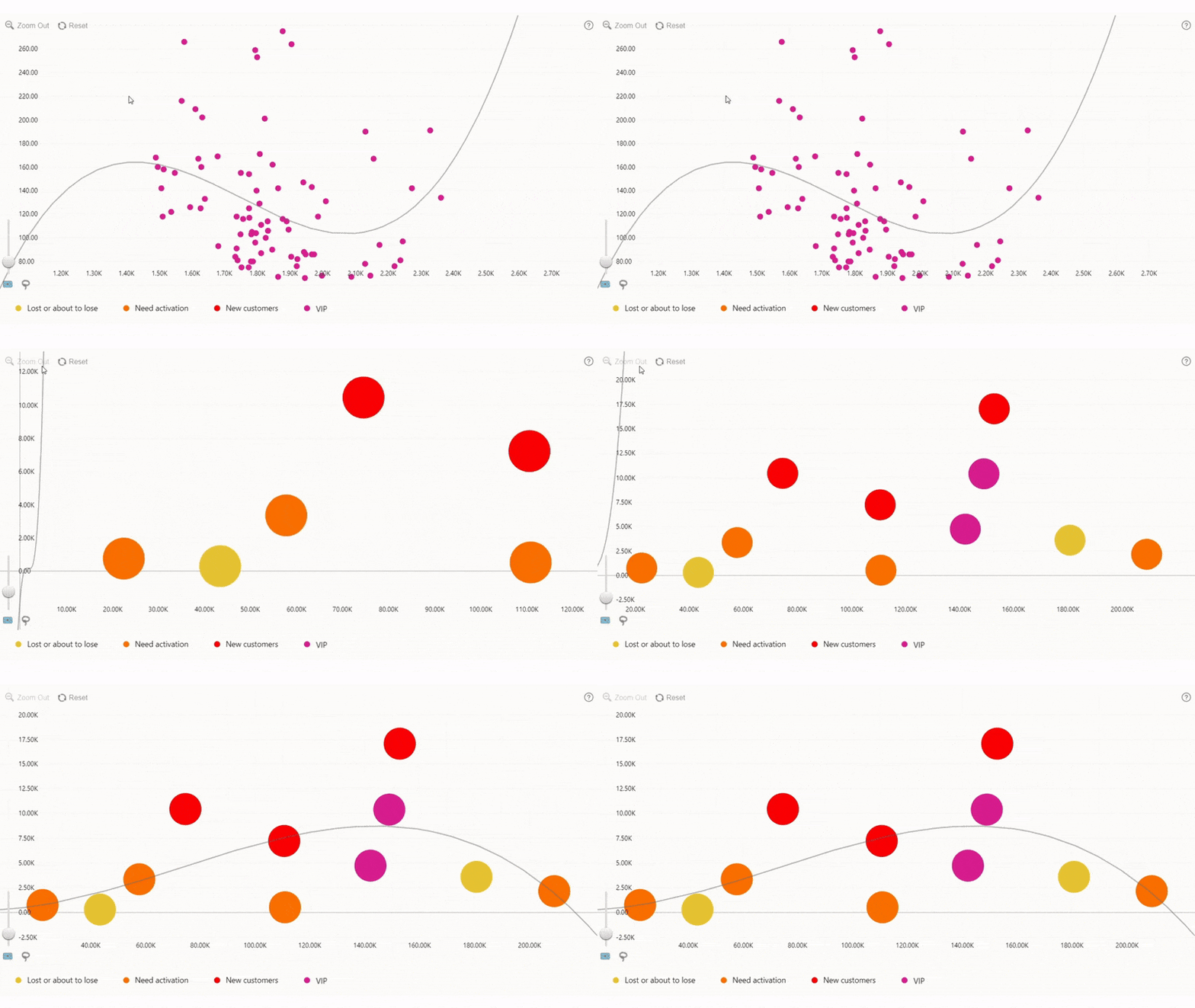
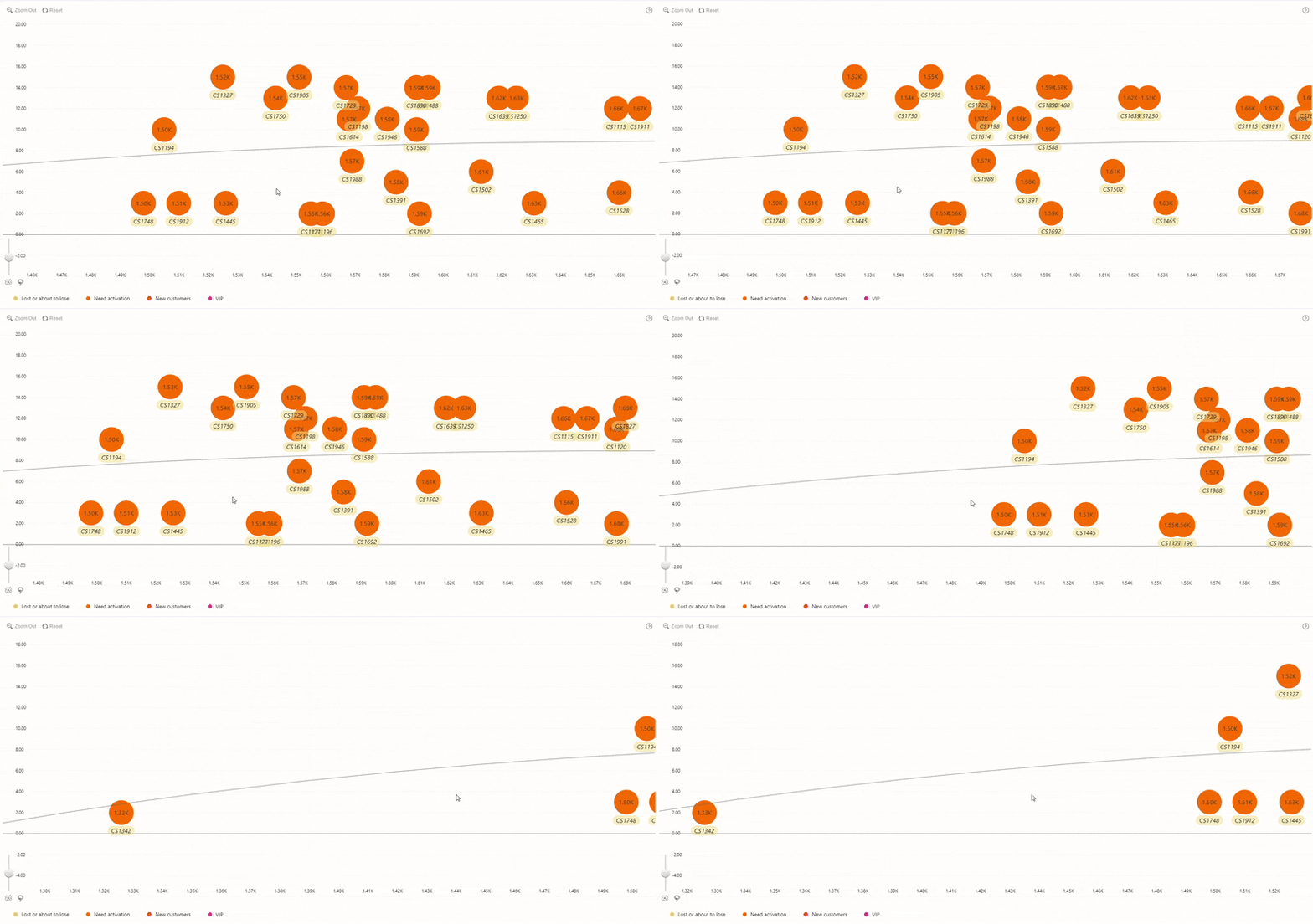
To increase or decrease the current zoom level, use the mouse scroll wheel or the pinch-to-zoom gesture. Report creators can also enable a zoom slider in the toolbar with the Enable “Zoom Control” setting.

Zoom-in/Zoom-out

Fit To Screen

Press the Fit to Screen button on the toolbar (if it is enabled) to automatically find a zoom level and position that displays all currently visible data points and fits them within the viewport.
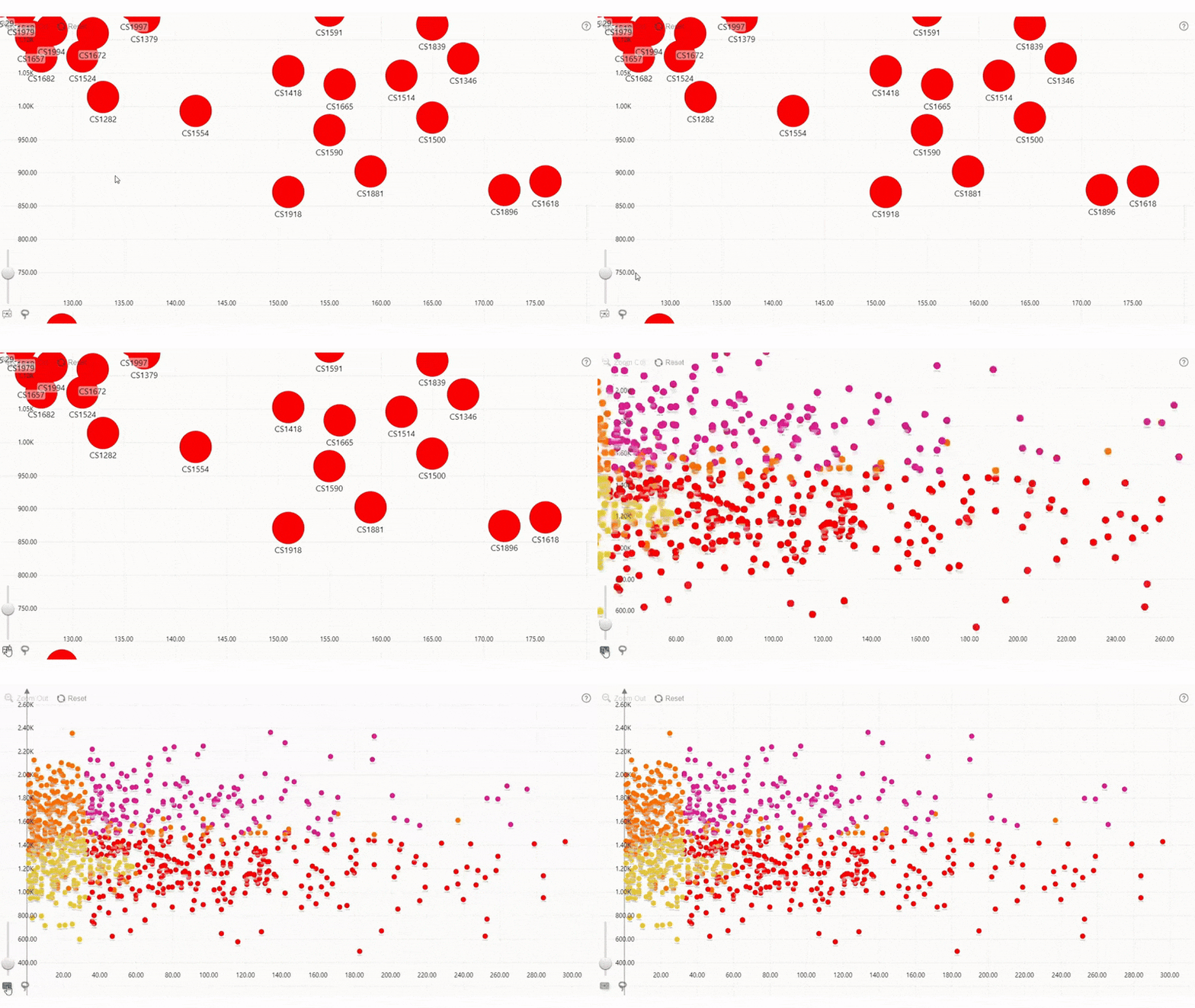
Fit To Screen

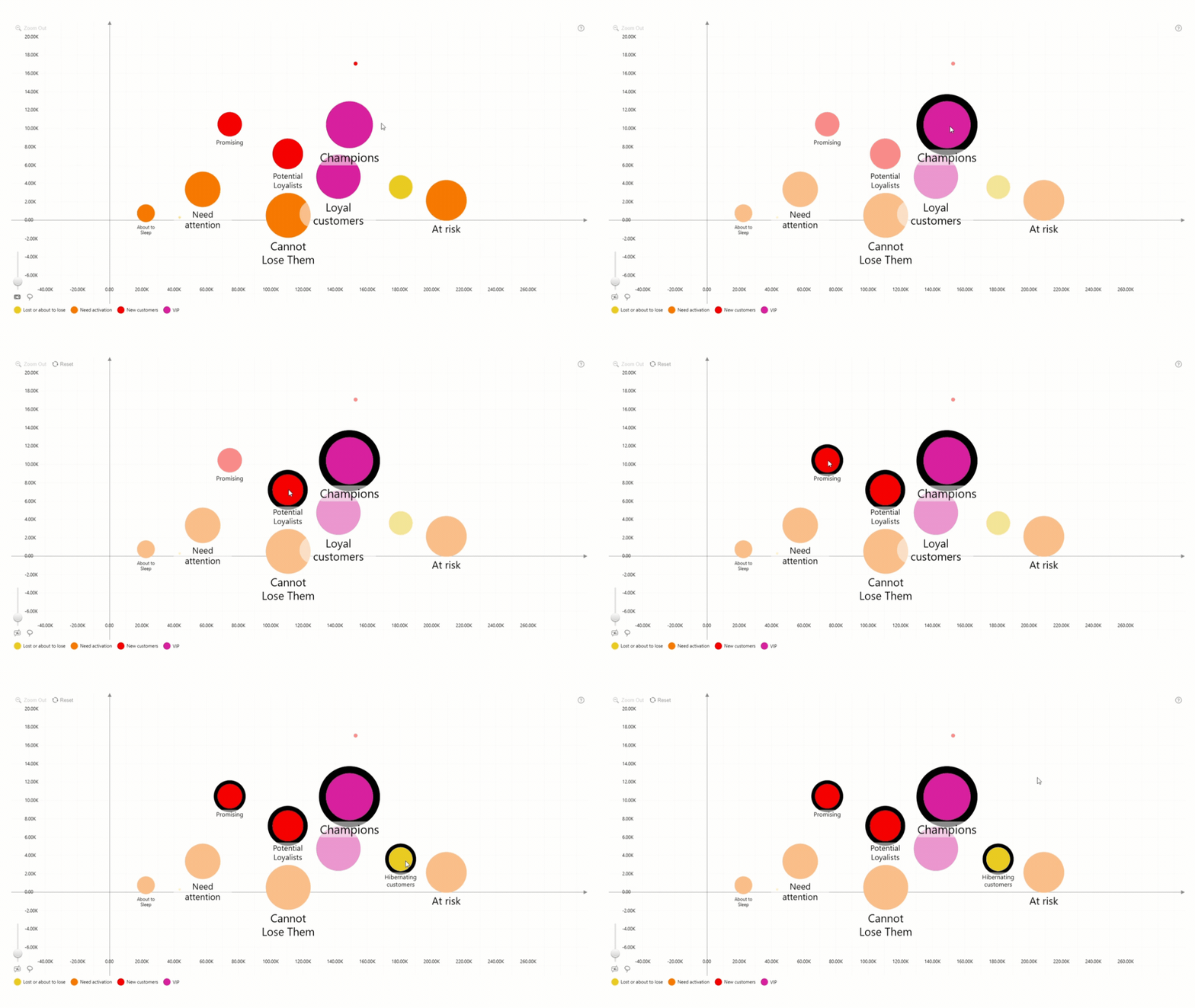
Select a Data Point

To select a single data point, click and hold the left mouse button on its marker until you see a black border which indicates that the data point is highlighted. If you are at the final or only level of hierarchy, left click will select a data point.
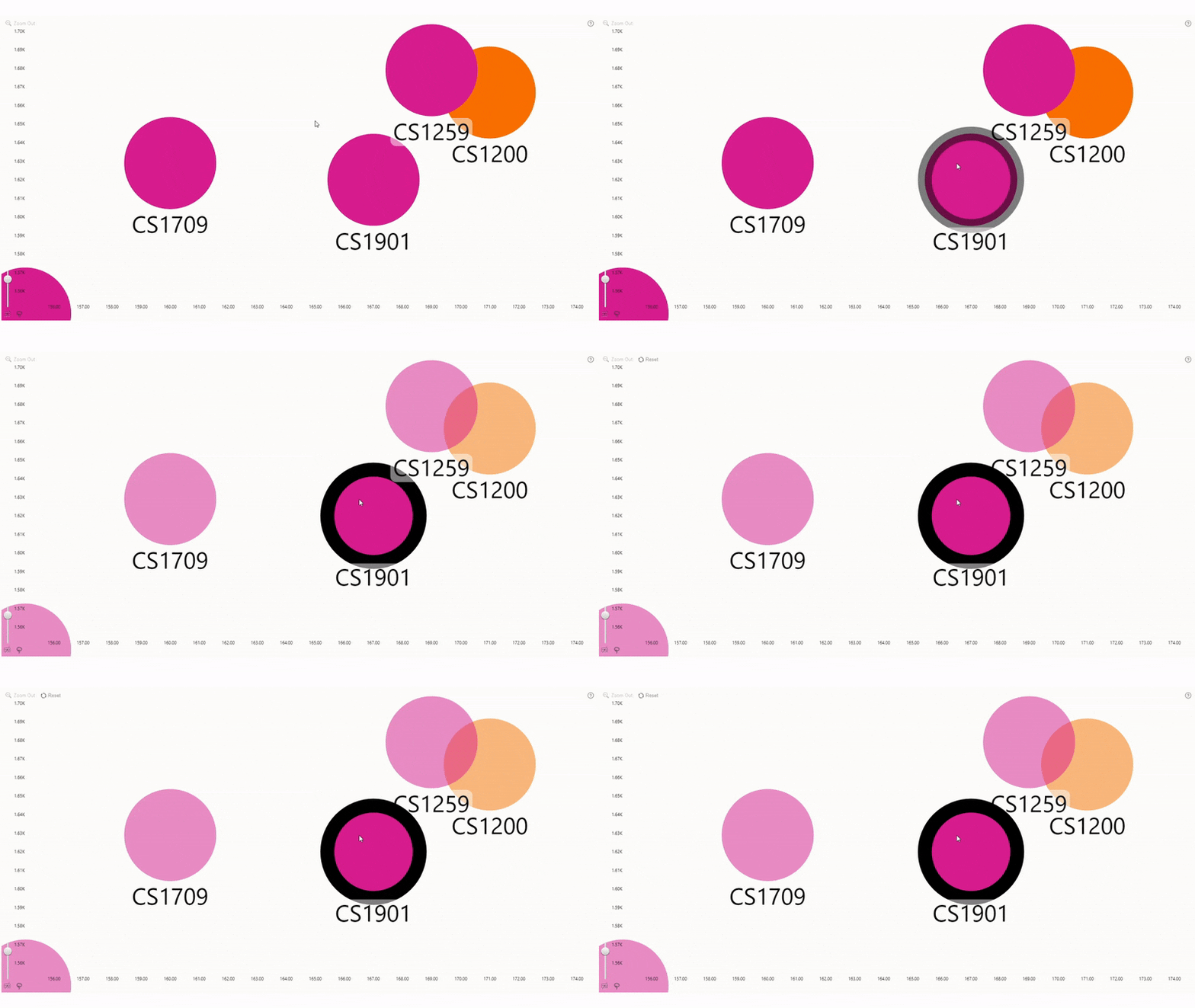
Select a Data Point

Clear Selection

To clear your selection, left-click or tap on any empty area.
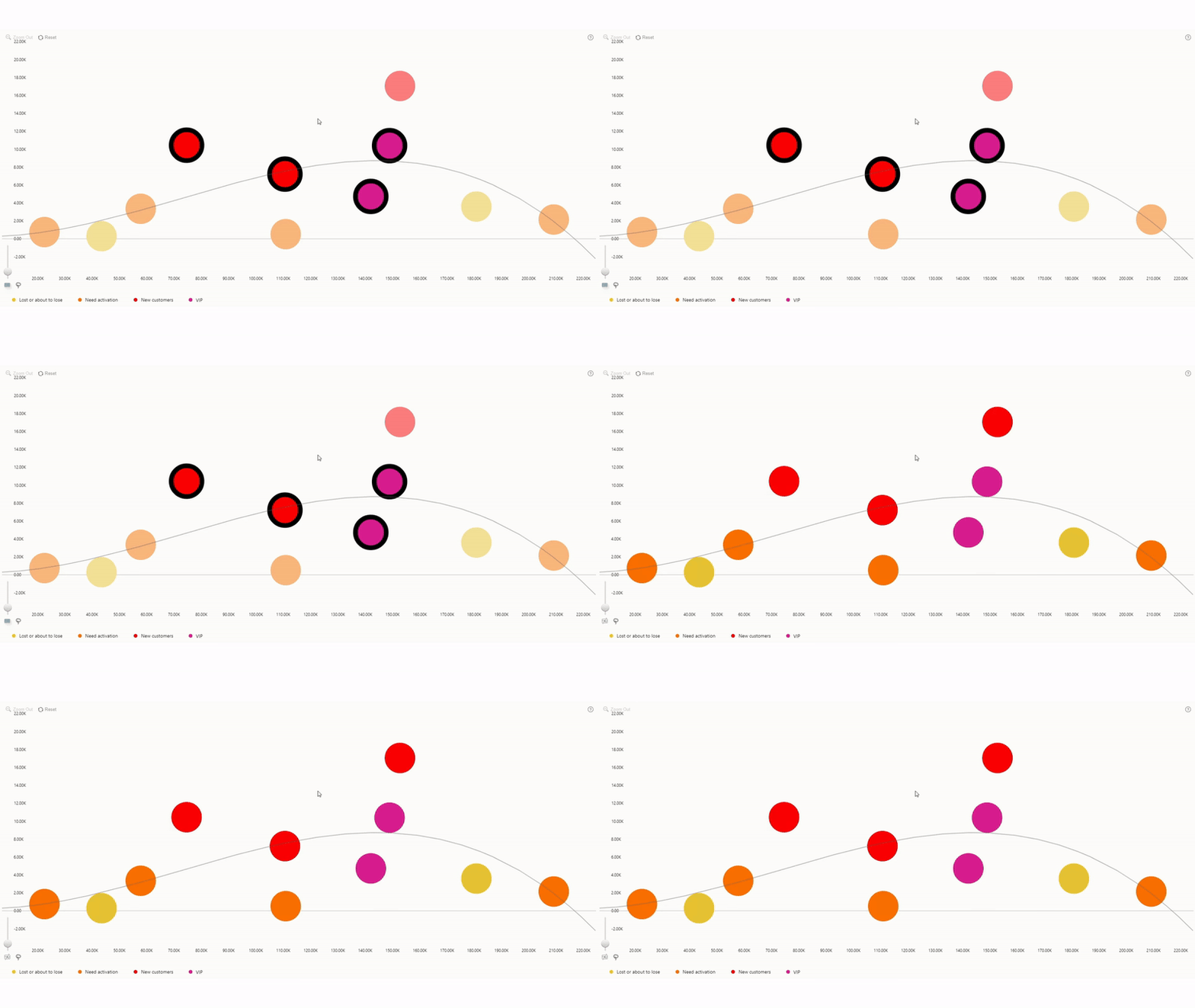
Clear Selection

Add To Selection

To add another data point to your selection, click and hold the left mouse button while holding the CTRL key or Shift.
Add To Selection

Rectangular Selection

To select multiple data points, click and hold the left mouse button on an empty area until the mouse pointer changes to a crosshair, and drag the mouse while holding the left click to draw a rectangular selection. For touch devices, tap and hold and then drag.
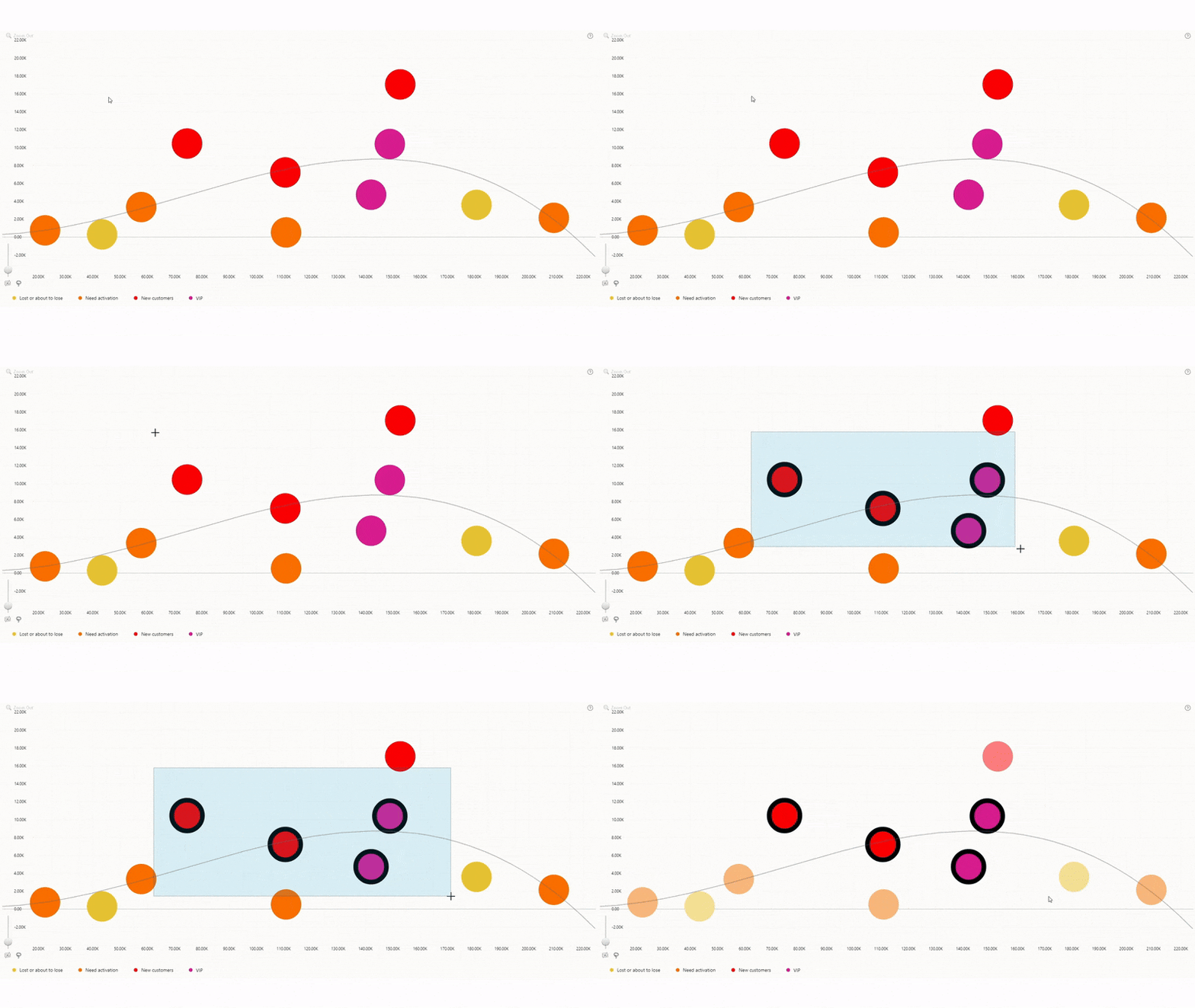
Rectangular Selection

Lasso Selection

Multiple data points can also be selected by pressing the Lasso Tool button in the toolbar (if it is enabled). While the lasso selection mode is active, left-click or tap on the chart to add an anchor point. Once you have created your desired shape, press the Lasso Tool button again or the Enter key to turn it into a selection area.
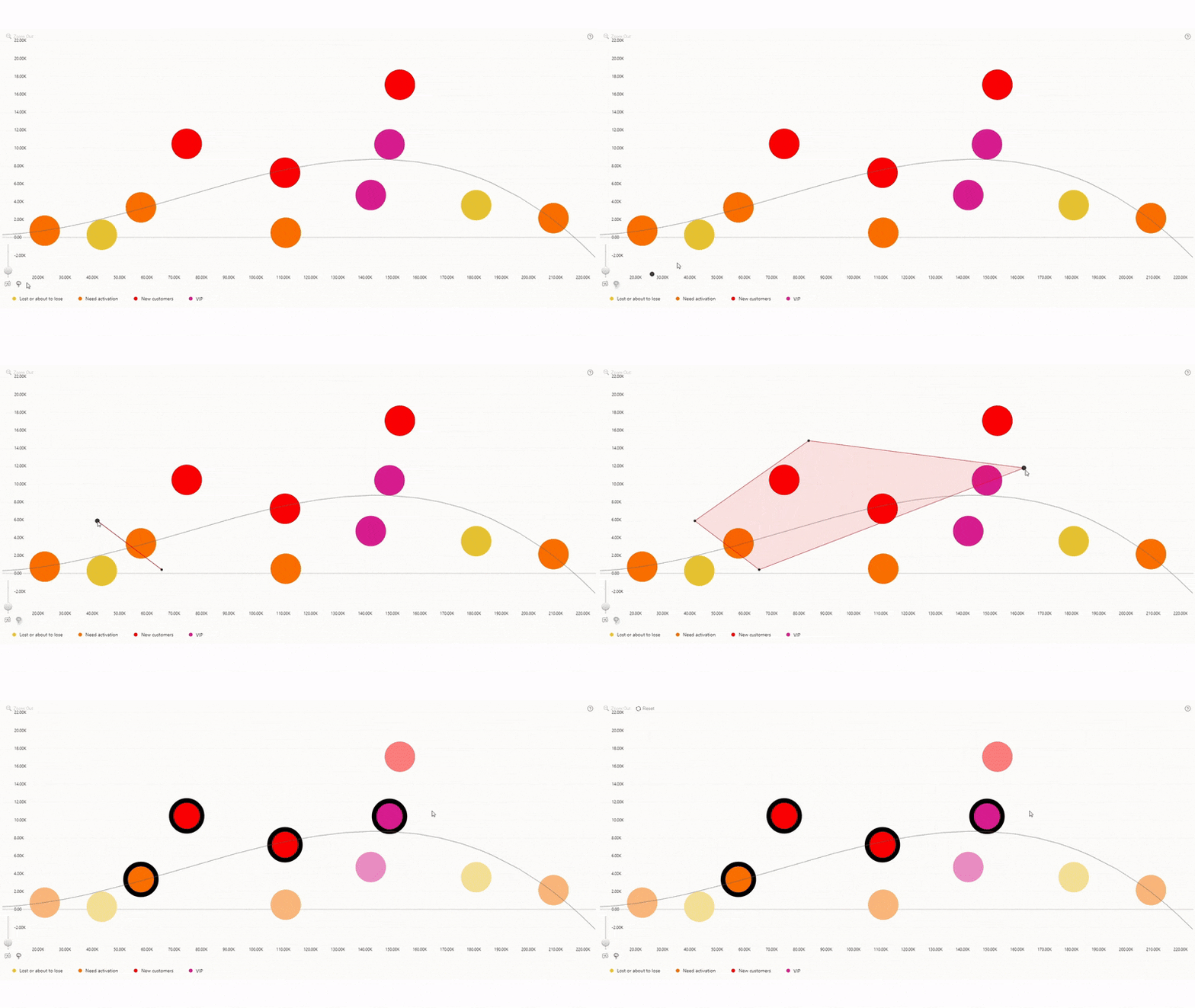
Lasso Selection

Was this helpful? Thank you for your feedback!

Sorry about that.

How can we improve it?

logo
[email protected]
+44 204 577 3993
logo

Products

Drill Down Bubble PRO Drill Down Line PRO Drill Down Network PRO Drill Down Waterfall PRO Drill Down Graph PRO Drill Down Combo PRO Drill Down Combo Bar PRO Drill Down Donut PRO Drill Down Pie PRO Drill Down TimeSeries PRO Drill Down Timeline PRO Drill Down Map PRO Drill Down Scatter PRO All Visuals

Resources

Report Examples Webinars Blog ZoomCharts Academy Visuals Gallery Documentation Custom Visual Development Subscribe to News

Solutions

Custom Visual Development

Company

Pricing About Us Partners Leave feedback Join PowerGroup EU Funding

Help

ZoomCharts Assistance Contact Sales Contact Support FAQ AI Information

Drill Down Line PRO Drill Down Bubble PRO Drill Down Network PRO Drill Down Waterfall PRO Drill Down Graph PRO Drill Down Combo PRO Drill Down Combo Bar PRO Drill Down Donut PRO Drill Down Pie PRO Drill Down TimeSeries PRO Drill Down Timeline PRO Drill Down Map PRO Drill Down Scatter PRO All Visuals

Report Examples Webinars Blog ZoomCharts Academy Visuals Gallery Documentation Custom Visual Development Subscribe to News

Custom Visual Development

Pricing About Us Partners Leave feedback Join PowerGroup EU Funding

ZoomCharts Assistance Contact Sales Contact Support FAQ AI Information
+44 204 577 3993
[email protected]

Ready to get in touch?

Contact our experts with any question about Power BI and ZoomCharts for Free!

Contact us

© 2026, Data Visualization Software Lab

U.S. Patents No. 11,645,343; 11,921,804; 12,346,389

Cookies
Privacy Policy
Global
Legal
Patent
warning

Error message

success

Success info: Done!

ZoomCharts AI Assistant

We noticed you're using an old OS version.

For the best experience, we recommend upgrading to ensure that all website features display correctly.

Cookie settings

We use necessary cookies for site functionality, as well as statistic, marketing, and preference cookies to enhance your experience. For more information and to manage your preferences, please visit our Cookie policy