logo
For Power BI Report Templates
  • Products

    Drill Down Visuals for Power BI

    Discover the most customizable custom visuals for Power BI.

    Pricing & licensing
    • Drill Down Donut Pro
      Drill Down Donut Category Composition
    • Drill Down Pie Pro
      Drill Down Pie Proportional Breakdown
    • Drill Down Combo Pro
      Drill Down Combo Multi-Metric Trends
    • Drill Down Combo Bar Pro
      Drill Down Combo Bar Cross-Metric Trends
    • Drill Down Line Pro
      Drill Down Line Trend Analysis
    • Drill Down Bubble Pro
      Drill Down Bubble Value Relationships
    • Drill Down Scatter Pro
      Drill Down Scatter Correlation Analysis
    • Drill Down Network Pro
      Drill Down Network Entity Connections
    • Drill Down Graph Pro
      Drill Down Graph Relationship Mapping
    • Drill Down Map Pro
      Drill Down Map Geographic Insights
    • Drill Down Waterfall Pro
      Drill Down Waterfall Change Breakdown
    • Drill Down Timeline Pro
      Drill Down Timeline Time-Based Metrics
    • Drill Down TimeSeries Pro
      Drill Down TimeSeries Temporal Patterns
    • Drill Down Line Pro
      Drill Down Line Trend Analysis

    Visuals in Planning

    Discover visuals we’re exploring, share your feedback, and help us decide what to build next.

    Browse concepts
  • Report Templates
    • Browse Report Templates
      Browse Report Templates Explore 2700+
      Power BI reports
    • Plans & Pricing Choose the report download plan
      that fits your needs

    Browse by Category

    Project ManagementSalesFinanceHRKPIBankingLogisticsCRMMarketing
  • Resources

      Learn

    • Video Tutorials Step-by-step Power BI guides
    • Webinars Live and recorded expert sessions
    • Visuals Gallery Explore all custom Power BI visuals
    • Blog Power BI tips, updates, and guides
    • Documentation Setup, features, and API reference

    Support

    • ZoomCharts Assistance Help from our product experts
    • Contact Sales Questions about pricing or licensing
    • Contact Support Technical help and troubleshooting
    • FAQ Quick answers to common questions
  • Services
    • Power BI Report Development
      Power BI Report Development End-to-end custom
      Power BI reports.
    • Custom Visual Development
      Custom Visual Development Custom visuals for
      your business needs.
  • Challenges
  • Pricing
Request a quote Try Free Trial Sign in
Request a quote Book a Demo Try Free Trial Sign in
Get it now
Go back

Contents

Blog Powerbi Tutorials Fixing Date Format Errors in Power BI: A Step-by-Step Guide

Aug 14, 2025

Fixing Date Format Errors in Power BI: A Step-by-Step Guide

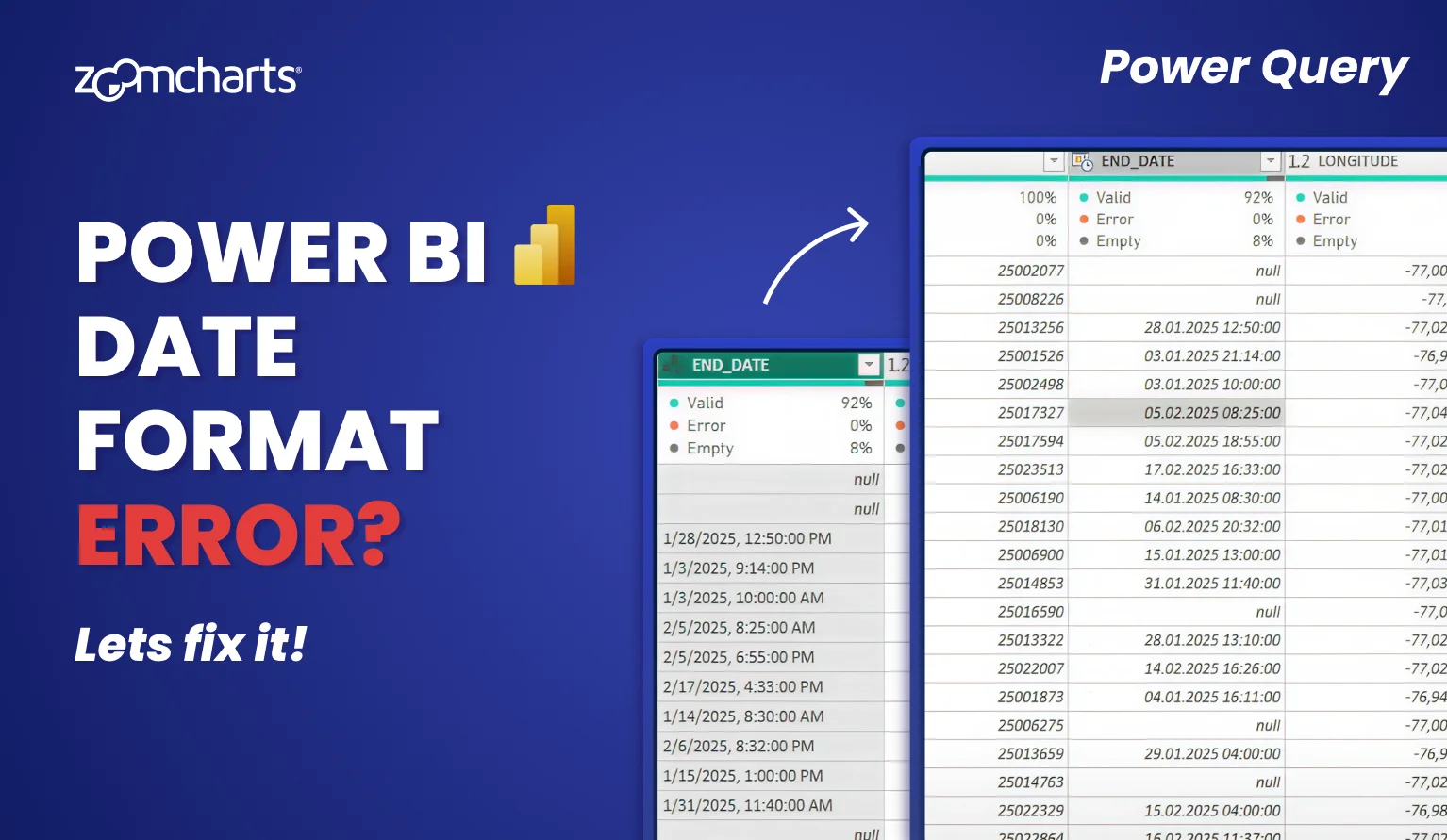
When working with Power BI, especially across international datasets, one of the most common (and frustrating) issues developers encounter is data format errors.
Title image
Title image

When working with Power BI, especially across international datasets, one of the most common (and frustrating) issues developers encounter is data format errors.

Contents

Share this article

Date format errors usually occur due to differences in regional date conventions (for example, DD.MM.YYYY in Europe, MM-DD-YYYY in the US, and YYYY/MM/DD in Asia). In this guide, we will show you how to quickly resolve Power BI date issues with a simple trick: “Change Type with Locale” in Power Query.

Common Problem: Date Format Mismatches in Power BI

Many datasets originate from different regions, and the date notation in each data source may be different due to regional conventions. For example, your Paris HQ may write “August 12, 2025” as 12.08.2025, whereas the data from your New York HQ has it like 08-12-2025, and Tokyo HQ notates it as 2025/12/08. Which is August 12, and which is December 8?

When merging international datasets together, Power BI may be just as confused by the mismatched date formats as you are, so it may result in:

  • Misinterpreted dates or errors
  • Incorrect column formats (Text instead of Date or DateTime)
  • Broken visuals if they rely on datetimes.

Solution: Convert Date Columns Using Locale

Power BI provides a smart workaround using locale settings in Power Query to interpret columns according to the correct regional format. In just a few clicks, the entire column will have an unified datetime format using your selected regional notation.

Video Tutorial: Change Type with Locale in Power Query

This video is a clip from our “Crime Analysis Power BI Report Workshop” webinar. Our resident Power BI report design expert Aivis often shares useful tips like this, so we recommend subscribing to ZoomCharts YouTube channel!  

Step-By-Step Instructions for Power BI Date Format Fix

Step 1: Open Power Query Editor

In Power BI Desktop, click on Transform Data, located in the Home tab of the top ribbon.
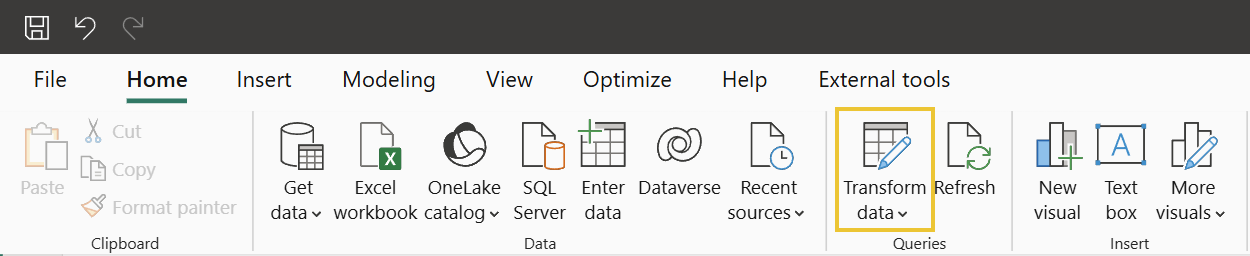
Click Transform Data in Power BI to open Power Query Editor

Step 2: Highlight Affected Columns

Select the columns with mismatched date formats (e.g. “Start Date”, “End Date”, etc.) by clicking on their column headers.

Step 3: Right Click -> Change Type -> Using Locale

The context menu will offer many different types – but instead of Date/Time, select Using Locale… instead.
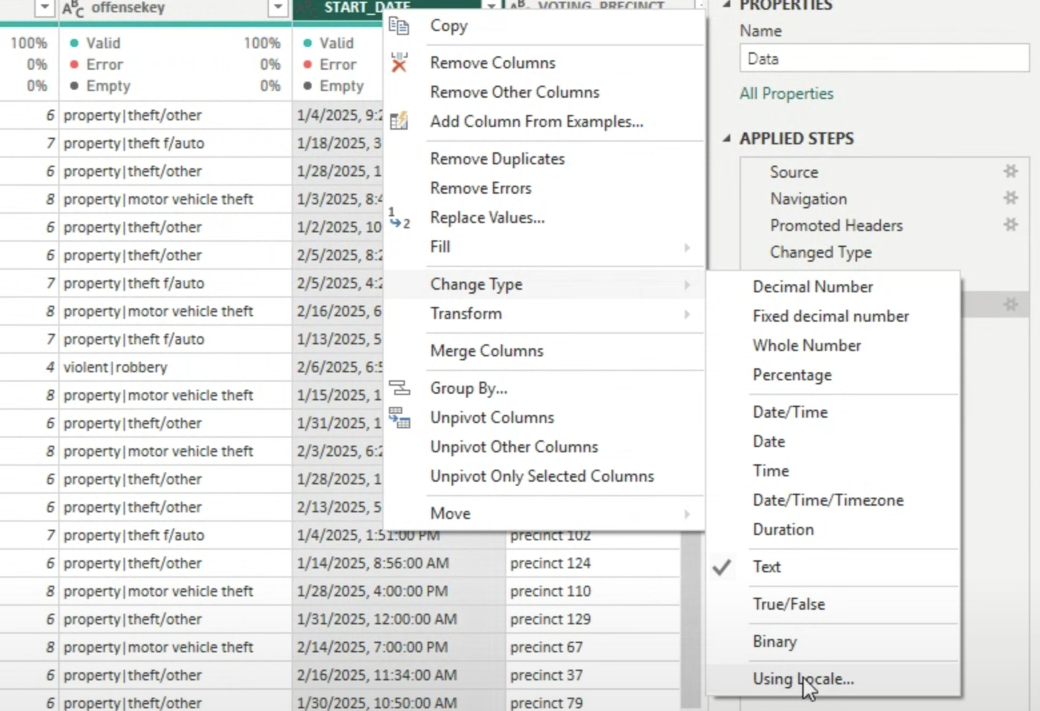
Power Query: Change Type using Locale

Step 4: Set the Correct Data Type and Locale

Once you select Using locale…, a new popup dialog will appear. There, set the data type to Date or Date/Time, and select the locale for the origin of your data. For example, if the data comes from USA, set to English (United States). This way, Power Query will know the origin locale of the data source and will know how to correctly interpret each date notation when merging multiple data sources from different regions together.
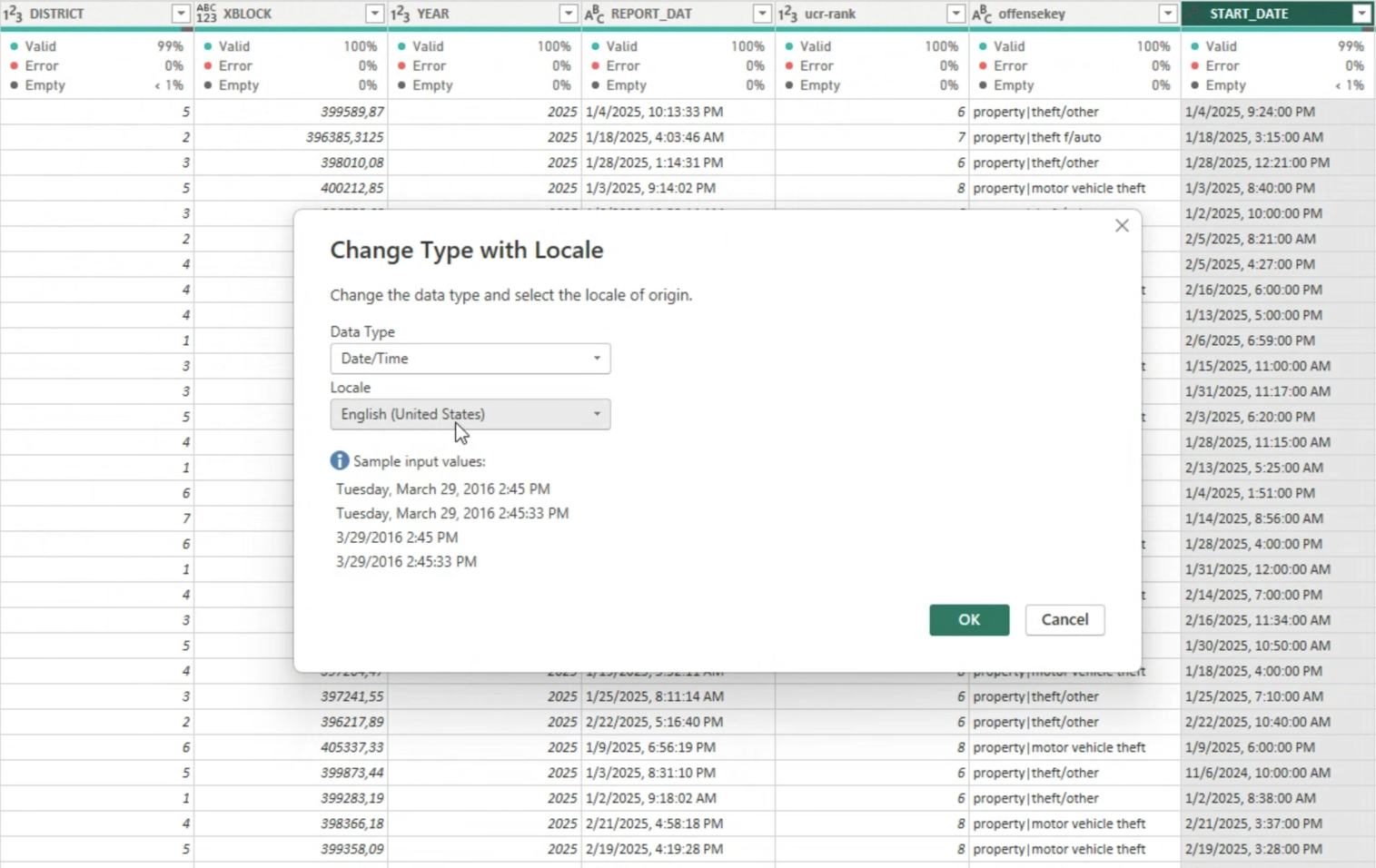
Power Query: Change Type using Locale dialog screen

Step 5: Click OK and Validate

Your date values should now convert properly without errors. For example, it will parse 1/08/2025 as January 8, not August 1, because it now knows that the locale that you set is United States so it should be read using MM/DD/YYYY.

Input Locale vs. Output Locale

  • Input Locale is how the data was formatted originally. What we adjusted now in Power Query is the input locale; it’s so that it can interpret them correctly.
  • Output Locale is how the data is displayed to the user, and the steps above did not affect that. It’s dependent on the users’ locale settings in Power BI – for example, if the user is in France, “August 12, 2025” will be displayed as “12 août 2025”.

Final Thoughts

Power BI date format errors are one of the most annoying things, and the Change Type with Locale method is the quickest and easiest way to avoid issues – especially when working with multiple data sources with different regional date notations. Now, your date columns will be parsed correctly, and you can properly visualize them in your reports. For example, with our Timeline PRO visual, which will make it easy to drill down based on your datetime hierarchy – try it now!
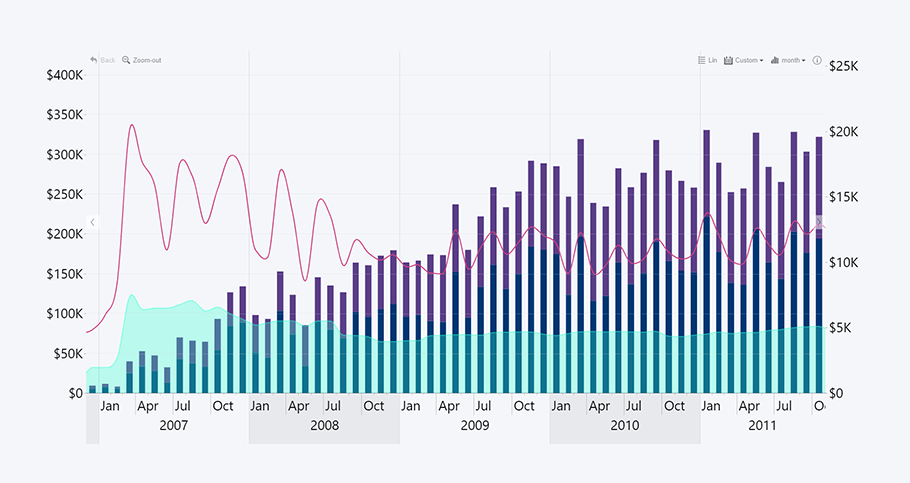
Power BI Timeline Chart

FAQ

Why do my date columns show as text in Power BI?

This often happens because Power BI cannot automatically detect the correct date format due to mismatched locale settings or different date formats within the dataset.

Should I always change the locale when importing data?

The Change Type with Locale method should be used only if you encounter mismatched date formats or errors due to different locales; in most cases, Power BI should handle datetimes without any issues.

What if I want to display dates in a different format for users?

What we described above will only affect input locale. If you want to alter output locale, which is how they are displayed to the user, you can apply custom formatting with DAX or within visual settings; otherwise they will be displayed using the user’s regional date format.

Can I automate this for all reports?

You can set the default locale for all new reports under Options -> Regional Settings for consistency.

Related content

  • Creating interactive Power BI Timeline charts: A Full Guide
  • Power BI Drill Down: The Ultimate Guide
  • Power BI Chart Types: Choosing the Right Visuals for Your Data
envelope icon

Want more info like this?

Subscribe to our newsletter and be the first to read our latest articles and expert data visualization tips!
Find out more

Oct 27, 2026

Blog Thumbnail

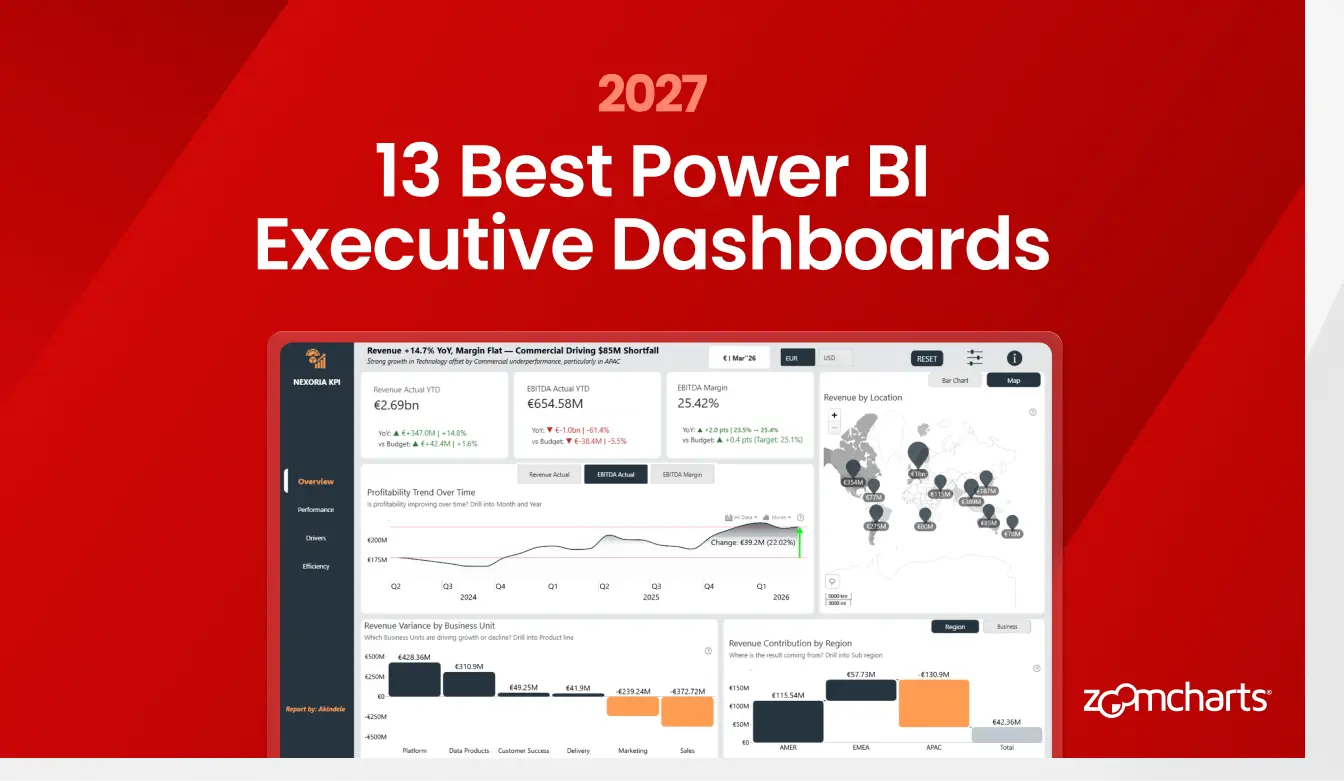
13 Best Power BI Executive Dashboard Examples and Templates for 2027

Explore 13 strong Power BI executive dashboards for financial, operational, regional, workforce, and customer reporting. See practical design ideas and preview customizable PBIX templates.

Oct 26, 2026

Blog Thumbnail
Data visualization

12 Best Power BI Marketing Dashboard Examples for 2027

The 12 marketing dashboard examples in this article show practical ways to organize campaign, email, acquisition, social media, content, retail, geographic, and engagement analysis in Power BI.

Oct 23, 2026

Blog Thumbnail
Data visualization

10 Best Power BI CRM Dashboard Designs and Templates for 2027

This guide features 10 real Power BI CRM dashboard designs from the ZoomCharts Template Gallery. Every report can be previewed online, and the PBIX template can be downloaded for closer inspection or adaptation.

Oct 22, 2026

Blog Thumbnail
Data visualization

12 Best Power BI Sales Dashboard Examples and Templates

Explore 12 real Power BI sales dashboards for revenue, profit, targets, customers, conversion, e-commerce, and returns, with interactive templates.

Oct 20, 2026

Blog Thumbnail
Data visualization

Power BI for Project Management: 10 Best Dashboard Examples

Looking for a Power BI project management dashboard that goes beyond a status page? These 10 real reports cover portfolio health, budget and schedule performance, delivery risk, tasks, milestones, and resources. Every example is available in the ZoomCharts Template Gallery, where you can preview the report and review the PBIX template.

Oct 15, 2026

Blog Thumbnail
Data visualization

15 Power BI Dashboard Examples by Industry (2026)

This guide brings together 15 real Power BI dashboard examples across healthcare, retail, e-commerce, banking, finance, project management, sales, energy, logistics, and HR. Every report is available to preview in the ZoomCharts Power BI Template Gallery, where you can explore interactive visuals and review the report before choosing a PBIX template.
  • 1
  • 2
  • 3
  • 4
  • 5
  • ...
  • 18
  • »

Contents

Share this article

Want more info like this?

Subscribe to our newsletter and be the first to read our latest articles and expert data visualization tips!

Thank you!

Check your inbox to verify your email address.

logo
[email protected]
+44 204 577 3993
logo

Products

Drill Down Bubble PRO Drill Down Line PRO Drill Down Network PRO Drill Down Waterfall PRO Drill Down Graph PRO Drill Down Combo PRO Drill Down Combo Bar PRO Drill Down Donut PRO Drill Down Pie PRO Drill Down TimeSeries PRO Drill Down Timeline PRO Drill Down Map PRO Drill Down Scatter PRO All Visuals

Resources

Report Examples Webinars Blog ZoomCharts Academy Visuals Gallery Documentation Subscribe to News

Solutions

Custom Visual Development Power BI Report Development

Company

Pricing About Us Partners Leave feedback Join PowerGroup EU Funding

Help

ZoomCharts Assistance Contact Sales Contact Support FAQ AI Information

Drill Down Line PRO Drill Down Bubble PRO Drill Down Network PRO Drill Down Waterfall PRO Drill Down Graph PRO Drill Down Combo PRO Drill Down Combo Bar PRO Drill Down Donut PRO Drill Down Pie PRO Drill Down TimeSeries PRO Drill Down Timeline PRO Drill Down Map PRO Drill Down Scatter PRO All Visuals

Report Examples Webinars Blog ZoomCharts Academy Visuals Gallery Documentation Subscribe to News

Custom Visual Development Power BI Report Development

Pricing About Us Partners Leave feedback Join PowerGroup EU Funding

ZoomCharts Assistance Contact Sales Contact Support FAQ AI Information
+44 204 577 3993
[email protected]

Ready to get in touch?

Contact our experts with any question about Power BI and ZoomCharts for Free!

Contact us

© 2026, Data Visualization Software Lab

U.S. Patents No. 11,645,343; 11,921,804; 12,346,389

Cookies
Privacy Policy
Global
Legal
Patent
warning

Error message

success

Success info: Done!

ZoomCharts AI Assistant

We noticed you're using an old OS version.

For the best experience, we recommend upgrading to ensure that all website features display correctly.

Cookie settings

We use necessary cookies for site functionality, as well as statistic, marketing, and preference cookies to enhance your experience. For more information and to manage your preferences, please visit our Cookie policy